Start with the question the employee needs an answer to
A meeting room display helps the person standing outside a particular room. Planner helps the person coordinating meetings across rooms. They serve different purposes and can form part of the same solution. Choose according to where decisions are made and who needs to act.
- At the door: Is this room available and when does the next meeting start?
- When planning: Which room and time work when a meeting needs to be moved?
- Across both workflows: Who updates the reservation, and where is the revised meeting checked?
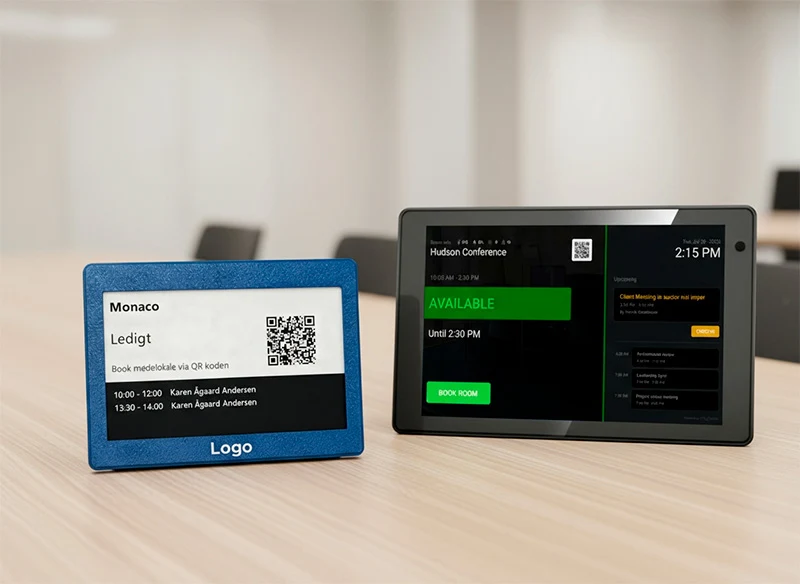
A room display shows status at the point of use
MyDesk meeting room displays show room status and meeting information at the door. Touchscreens and E-Ink displays offer different options. Booking and other actions depend on the model, calendar permissions and setup; do not assume touchscreen features are available on E-Ink.
Assess legibility from the hallway, location, mounting and connection. Agree on which information must be visible. A status screen is not in itself confirmation that the person at the door has the right to change the meeting.
Planner is for those who plan on behalf of others
MyDesk Planner provides a visual overview of meetings and rooms. Reception staff and personal assistants can book or move meetings with the relevant calendar permissions. Catering can be included when Planner is configured together with meeting catering.
Choose this workflow when you need to see several rooms and the day’s changes together. Agree who may move meetings, who receives updates and how changes are checked. A shared overview does not mean every user should have the same access.
An example: the meeting needs a larger room
The organiser discovers that more colleagues will attend in person than expected. The person handling planning finds a suitable room and changes the meeting using the necessary permissions. Check the saved reservation, notifications to participants and any catering according to your agreed workflow.
At the new room, the display should then match the reservation. The display helps participants identify the correct meeting; the planning tool helps the person responsible make the change. Test both if you use both solutions.
Clarify this before selection and setup
- Should the employee only see the status or also perform actions at the door?
- Who needs an overview of several rooms and permission to reschedule meetings?
- Which screens do you already have, and are the model and software compatible?
- Who is following up if the calendar and screen show different information?
Ask for a walkthrough based on your own rooms and roles. Try booking, moving and cancelling a meeting, then check the result in both the calendar and on the physical display. Confirm hardware, modules and configuration separately so your choice reflects the features you will actually receive.
See screen types and installation options.