Find a desk for your day.
Book a desk when you go to the office. Open MyDesk from Teams and choose from your available seats.
MyDesk · Microsoft Teams
Find a desk, book a meeting room and plan the office day from Microsoft Teams. The available functions follow your MyDesk solution.
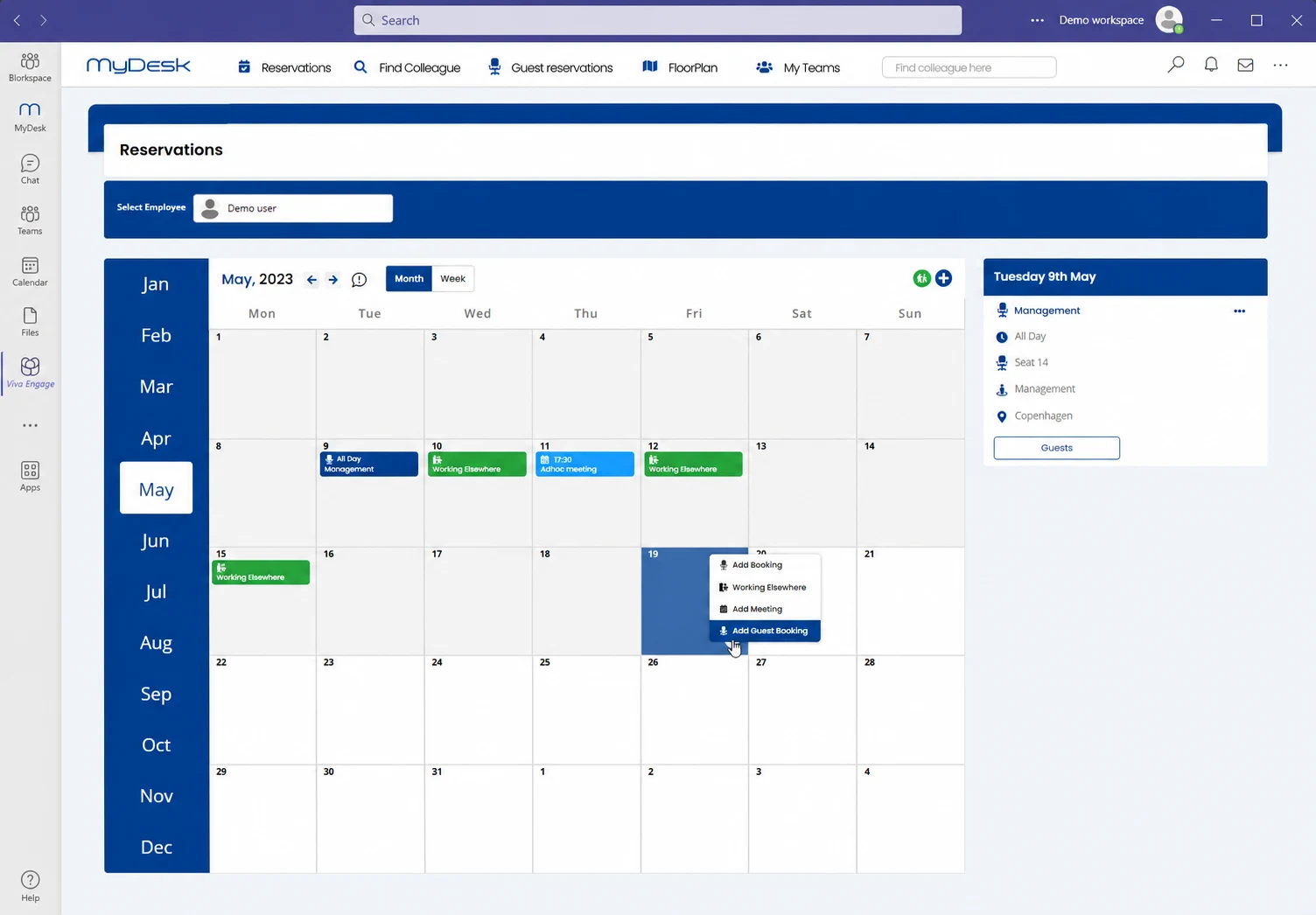
Part of your working day
Book a desk when you go to the office. Open MyDesk from Teams and choose from your available seats.
Find a meeting room and plan the meeting with the options activated in your MyDesk solution.
Reserve parking if it is part of your solution. Today's bookings are collected in MyDesk.
Download
Teams installs the app from a ZIP file. The package contains the manifest and two app icons. Upload the ZIP file as a single package.
 Beta package
Installation package for Microsoft Teams
This package is a beta version. Agree the right version and use on mobile or computer with MyDesk before rollout.
Installation guide
Start on a computer in Teams or the Teams admin center. You need a MyDesk account and access to your organisation’s Microsoft Teams environment.
Is MyDesk already entered by IT? Go directly to Open MyDesk in Teams.
Use an account with the Teams Administrator role. First test the agreed package with a test user.
Saw MyDesk Teams-app (ZIP) on the computer. Do not extract the ZIP file.
Log in to admin.teams.microsoft.com . Select Teams apps → Manage apps (Teams-apps → Administer apps).
Choose Actions → Upload new app or Upload new app, depending on your view. Select Upload, and locate the saved ZIP file.
Open MyDesk in the list of apps. Check that the app is allowed and select the users or groups that should have access under the app's availability. Your administration view may vary.
Use the app's installation options if MyDesk is to be installed for the selected users. If necessary, attach MyDesk via Teams apps → Setup policies → Pinned apps. Assign the appropriate policy to the users.
Open MyDesk in Teams with a test user. Check the login, correct company and the agreed modules. Also, test the devices you will use before expanding the rollout.
The app may take a few hours to become visible. If you already have MyDesk installed, IT must check the existing app and the update option before a new package is uploaded.
If IT has already made MyDesk available, you can find it under Apps in Teams. Upload the package yourself if the company allows custom apps.
Saw MyDesk Teams-app (ZIP) on the computer. Do not extract the file.
Open Teams on computer or web. Select Apps → Manage your apps → Upload an app (Apps → Manage your apps → Upload an app).
Choose Upload a custom app (Upload a custom app). Select the ZIP file, review the app details and select Add (Add).
Choose Open (Open). Log in with your work account if prompted. Check that you are in the right company.
Missing the upload option? Contact your IT administrator. The app must be allowed or deployed according to company Teams policy.
After installation
Find MyDesk under Apps or More apps (…) in Teams. Pin the app if your policy allows it so it's easy to find next time.
On the mobile, you will find the app among your available apps in Teams when IT has granted access. The location depends on the Teams version.
The installation methods follow Microsoft's instructions for management of custom apps, personal upload and central installation. Menu names may vary by language and Teams version.
MyDesk in your everyday life
We help you to clarify app version, modules and deployment in Teams.
Contact MyDesk