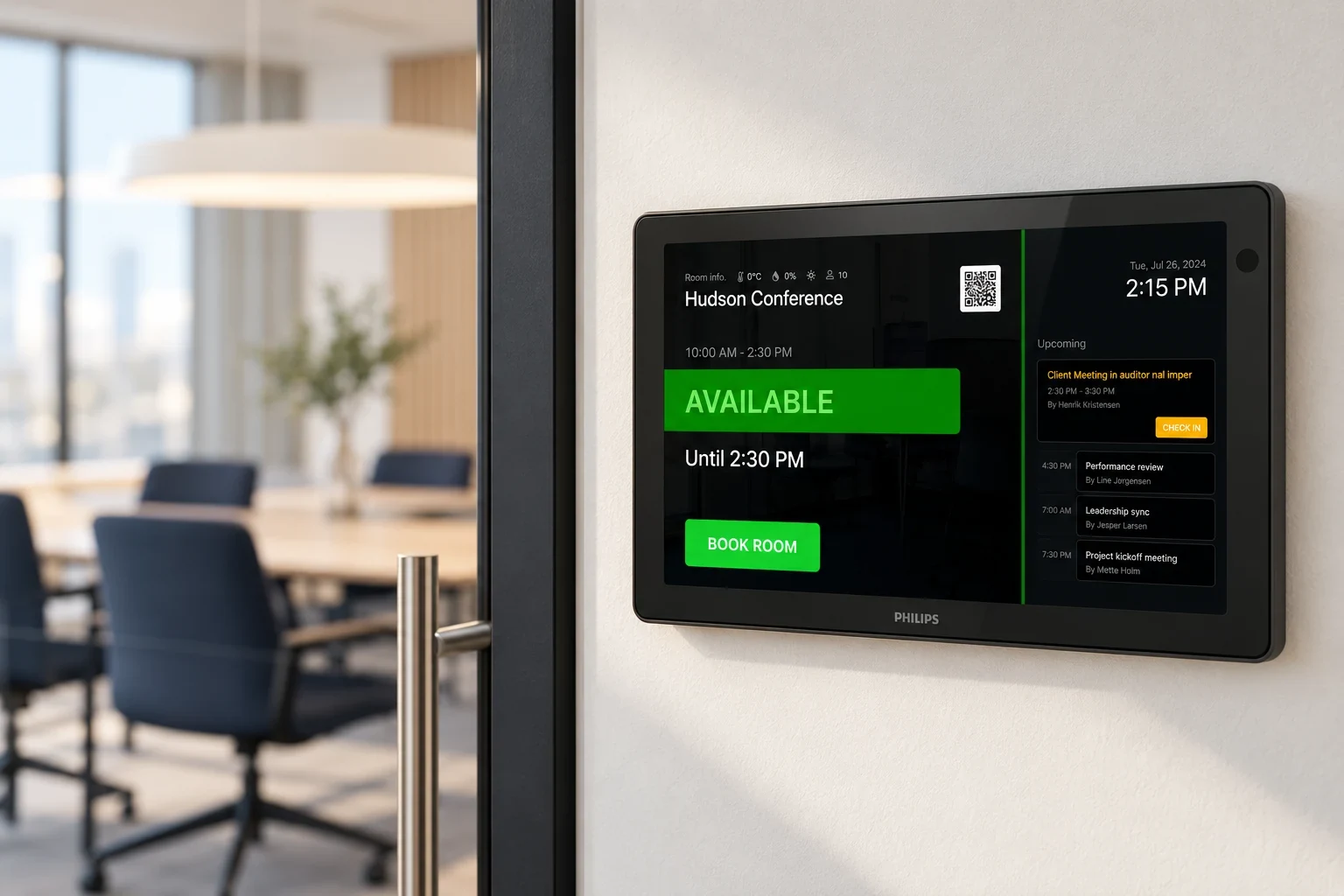
MyDesk supports most meeting room displays. We reuse your existing screens wherever possible, saving you from buying new ones. We help you check compatibility, update your displays and set them up to run MyDesk.
Connect the display to the network over Wi-Fi or Ethernet. Have the screen key and the meeting room display link from your MyDesk administrator ready.
Android 8 or later
Newer Philips displays
Choose MyDeskDisplay Prod for newer models such as the Philips 10BDL5051T.
Download MyDeskDisplay Prod (APK)Install MyDeskDisplay Prod
- Copy the downloaded APK to a USB drive and plug it into the display's USB port.
- Open Admin mode on the display. On the Philips 10BDL5051T, press Power + Volume Down.
- Select Apps → File Manager → USB. Open the APK, select Install, then Open.
- Select Sign in with Key, enter the screen key and sign in. Choose the display model under Choose Device and paste the full display link into Enter URL. Select OK and check that the correct room appears.
Start the app automatically
On the 10BDL5051T, set Input to Custom app under Settings → Signage Display → General settings → Boot on source. Then select MyDeskDisplay under Signage Display → Source settings → Custom app and save. Restart the display and check that the room opens automatically.
Down to Android 4.4.4
Older Philips displays
Choose MyDeskDisplay KitKat for older models such as the Philips 10BDL3051T running Android 4.4.4.
Download MyDeskDisplay KitKat 0.1.12 (APK)Install MyDeskDisplay KitKat
- Copy the KitKat APK to a USB drive and plug it into the display's USB port.
- Open the display's admin menu and go to Apps → File Manager. Select the USB drive, open the KitKat APK and select Install.
- Open MyDeskDisplay KitKat. Enter the key in Screen key and the digits after /MR/ in the display link in Room ID.
- Select Open room and check that the correct room and its status appear. If the app reports a certificate error, follow the instructions below.
If the signed MyDeskDisplay KitKat app is already installed, you can install the new APK over it to retain your settings.
Import the root certificate if you see a certificate error
Select Install certificate in the app and approve DigiCert Global Root G2 in the Android prompt. Then open the meeting room again.
You can also copy the certificate to a USB drive and import it under Android Settings → Security → Install from storage. If Android asks how to use the certificate, select VPN and apps.
Download DigiCert Global Root G2 (.crt)