Sådan gør du
Close Outlook and clarify the action with IT if the computer is managed centrally.
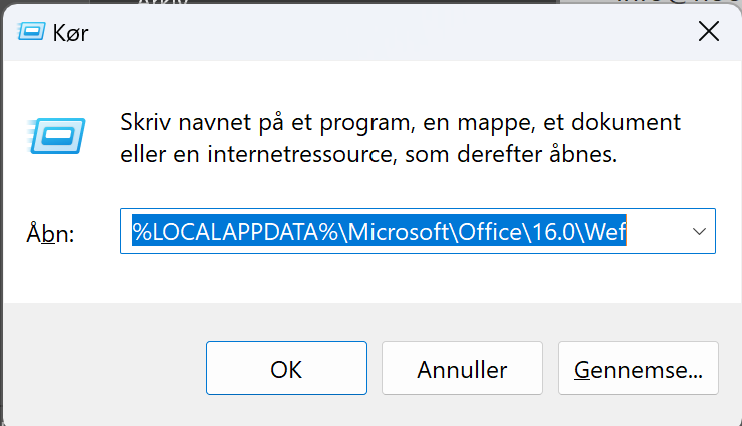
Open Windows Run and navigate to %LOCALAPPDATA%\Microsoft\Office\16.0\Wef.
Make a copy of the folder contents before clearing the cache. Clear only the specified add-on cache.
Restart Outlook and verify that MyDesk loads with the expected version.
The guide relates to classic Outlook on Windows; use the IT department's guidance for other clients.
See screenshots from the original guide (1)
Skærmbillederne stammer fra den tidligere guide og kan vise en ældre brugerflade.