Sådan gør du
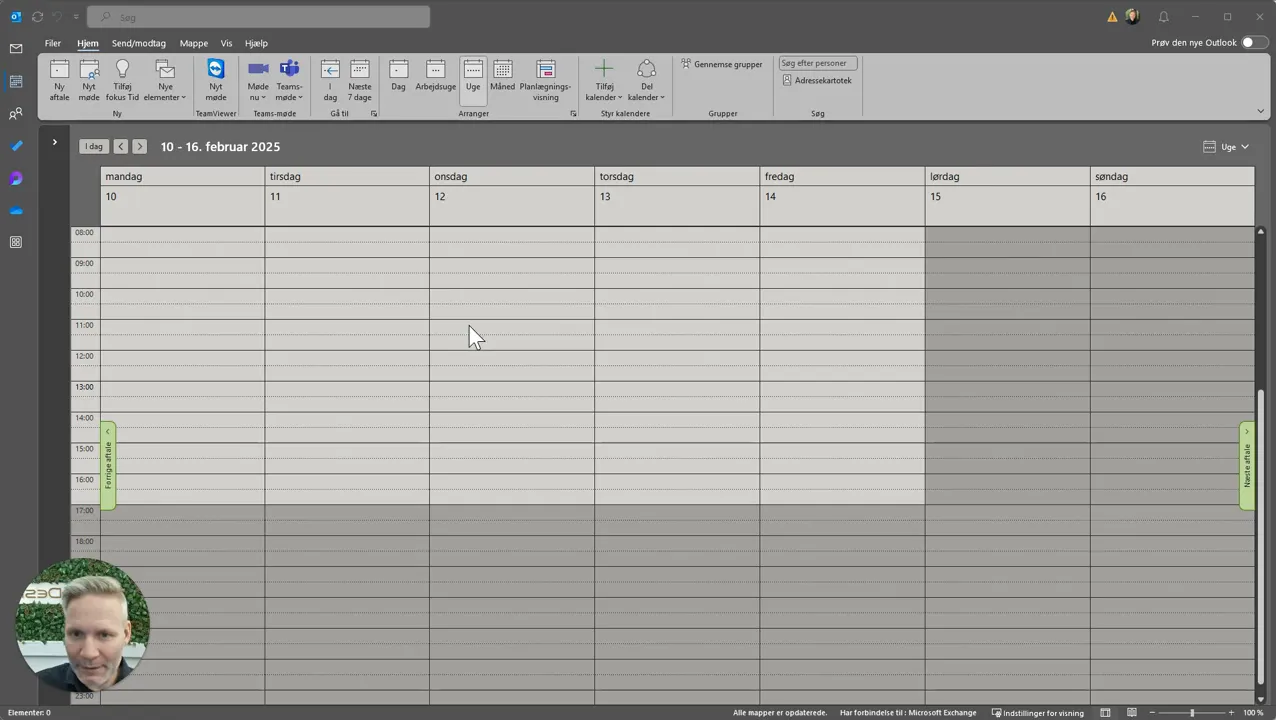
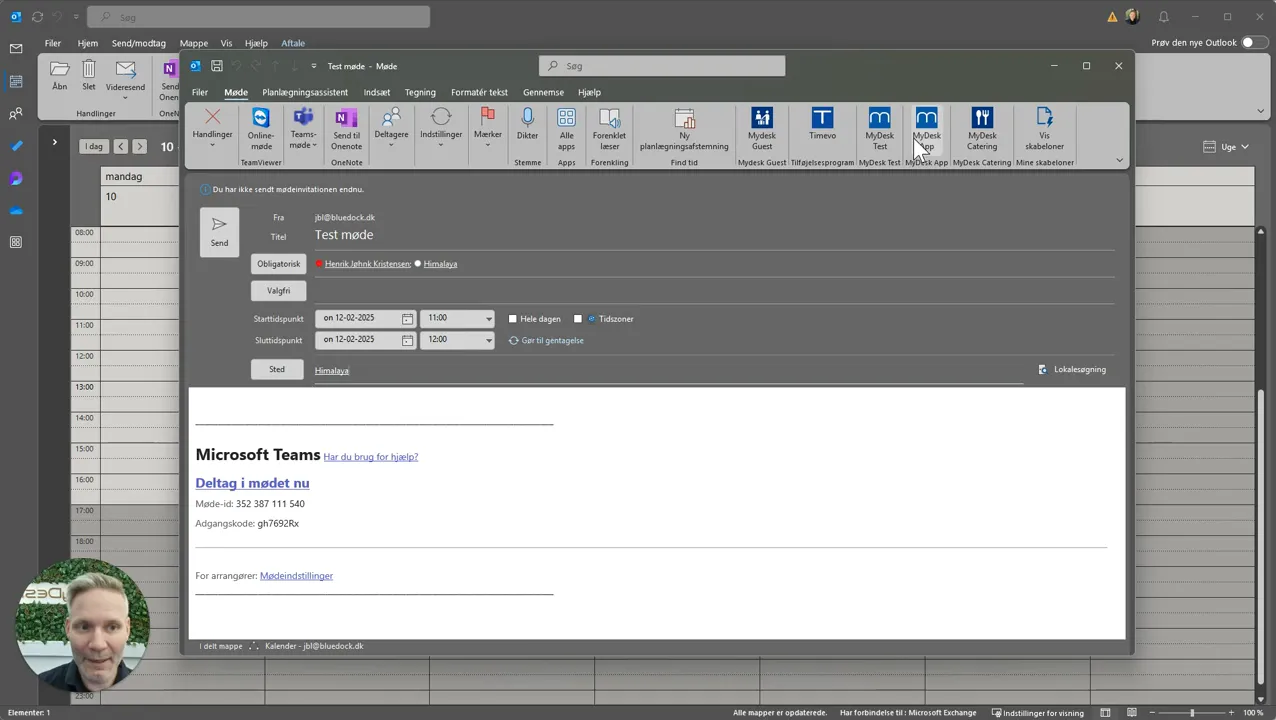
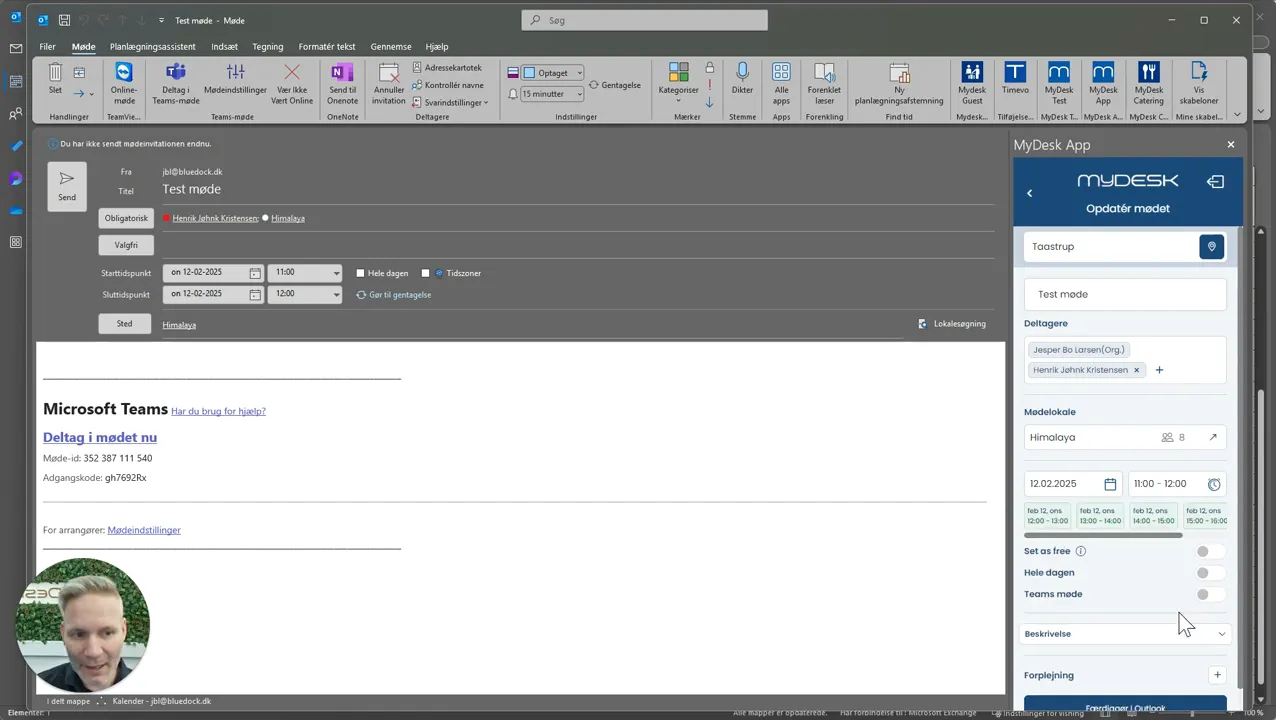
Create or open the meeting with date, time and room and open MyDesk.
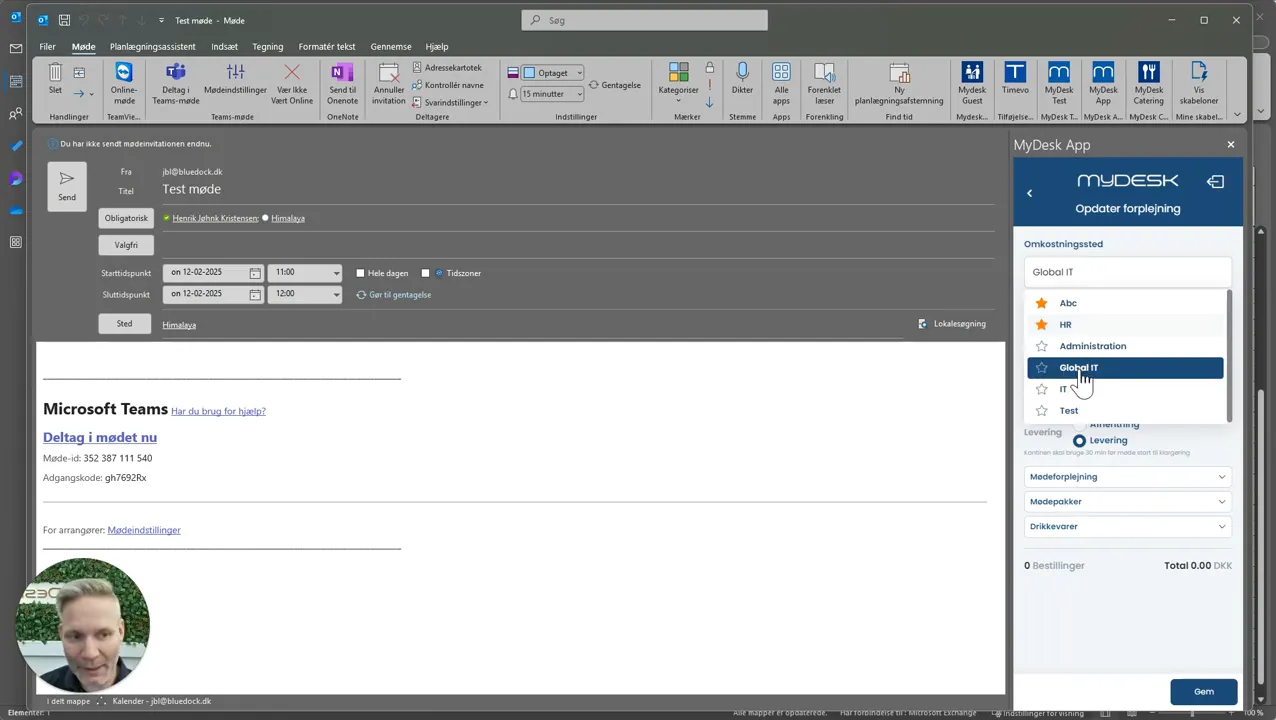
Select food center. You can save frequently used nutrition centers as favorites.
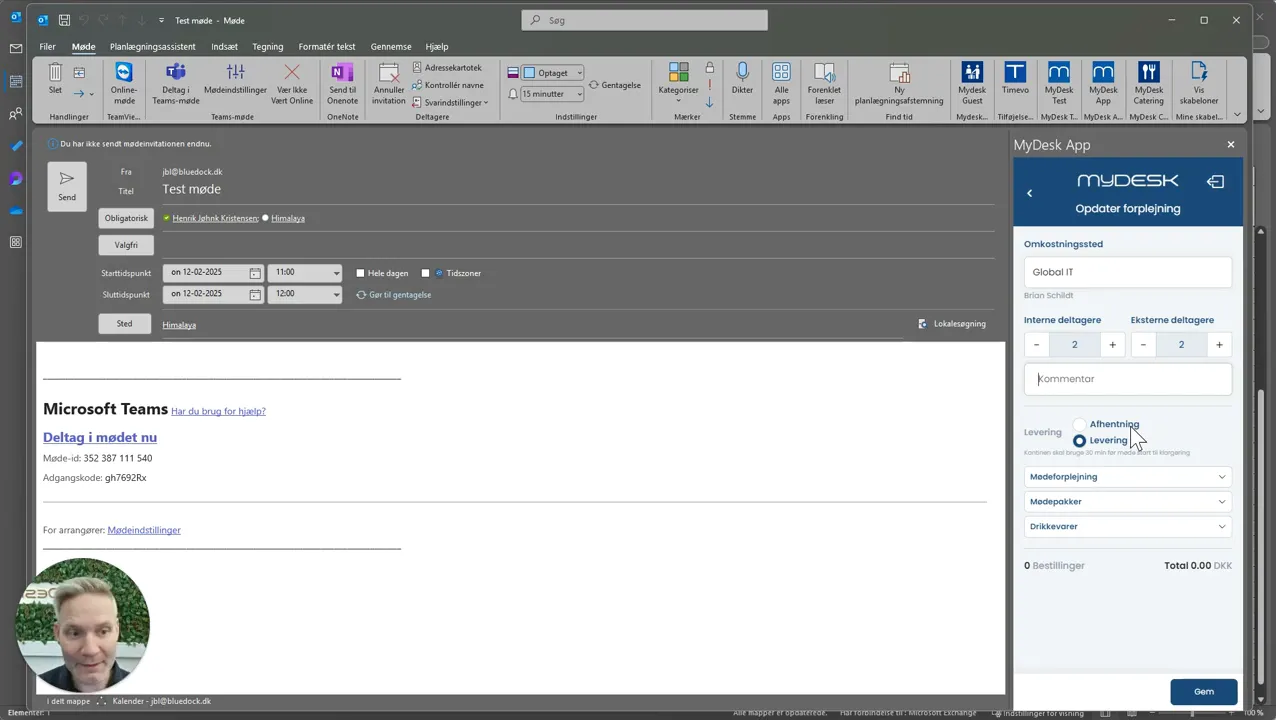
Enter the number of internal and external participants and any comments.
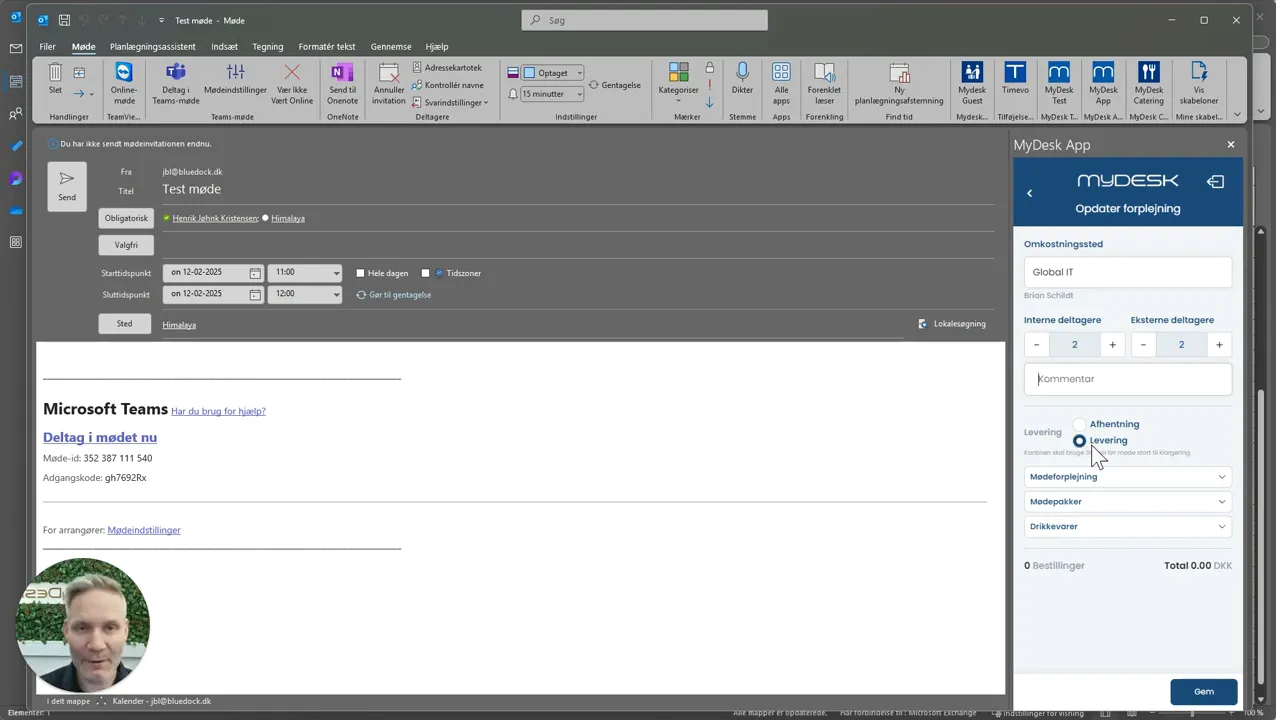
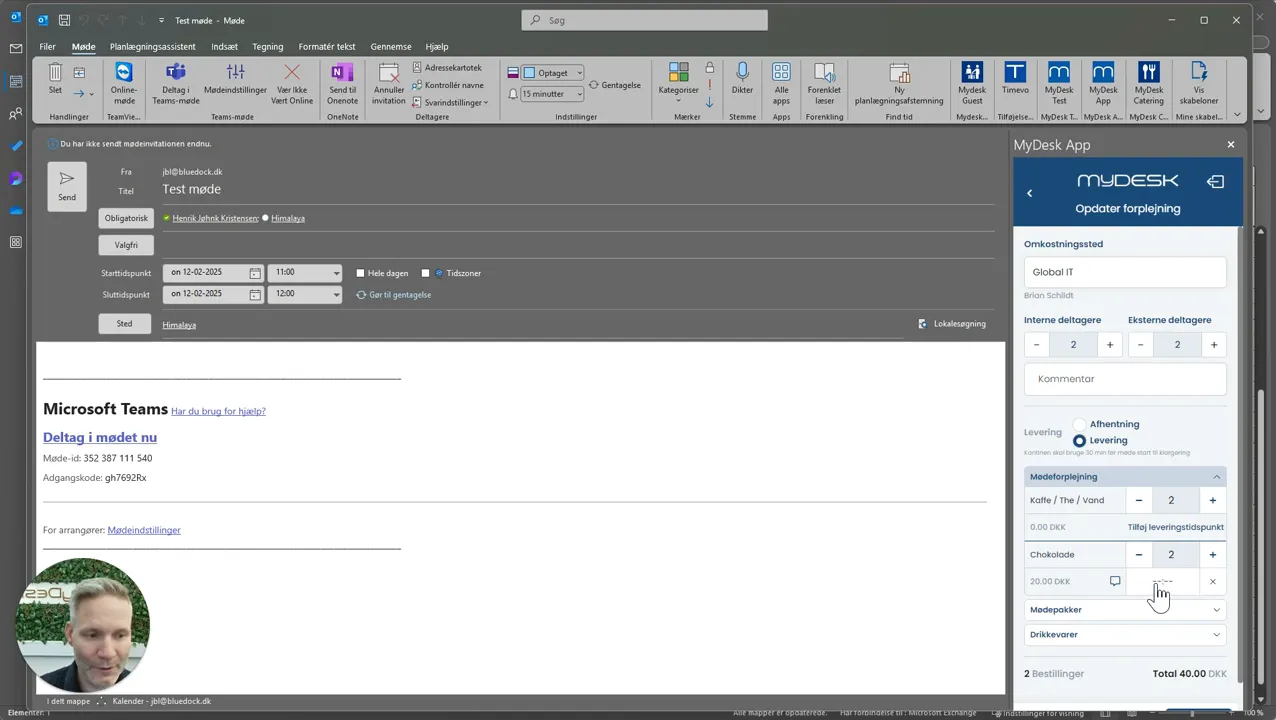
Choose delivery or collection and the products from the menu. Check the deadlines.
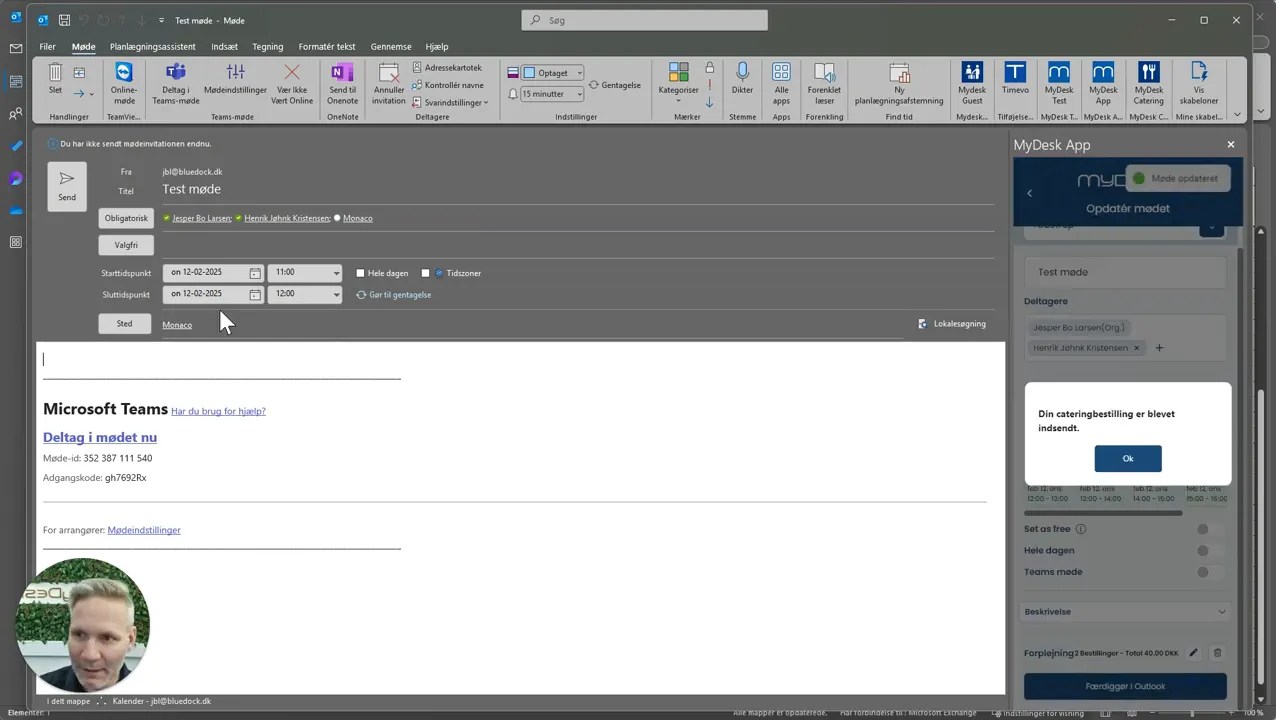
Save the order. For a new meeting, the invitation must also be sent so that the order can be linked to the correct meeting.
Se den oprindelige video
Video og skærmbilleder kan vise en tidligere version af MyDesk.
See screenshots from the original guide (8)
Skærmbillederne stammer fra den tidligere guide og kan vise en ældre brugerflade.