Sådan gør du
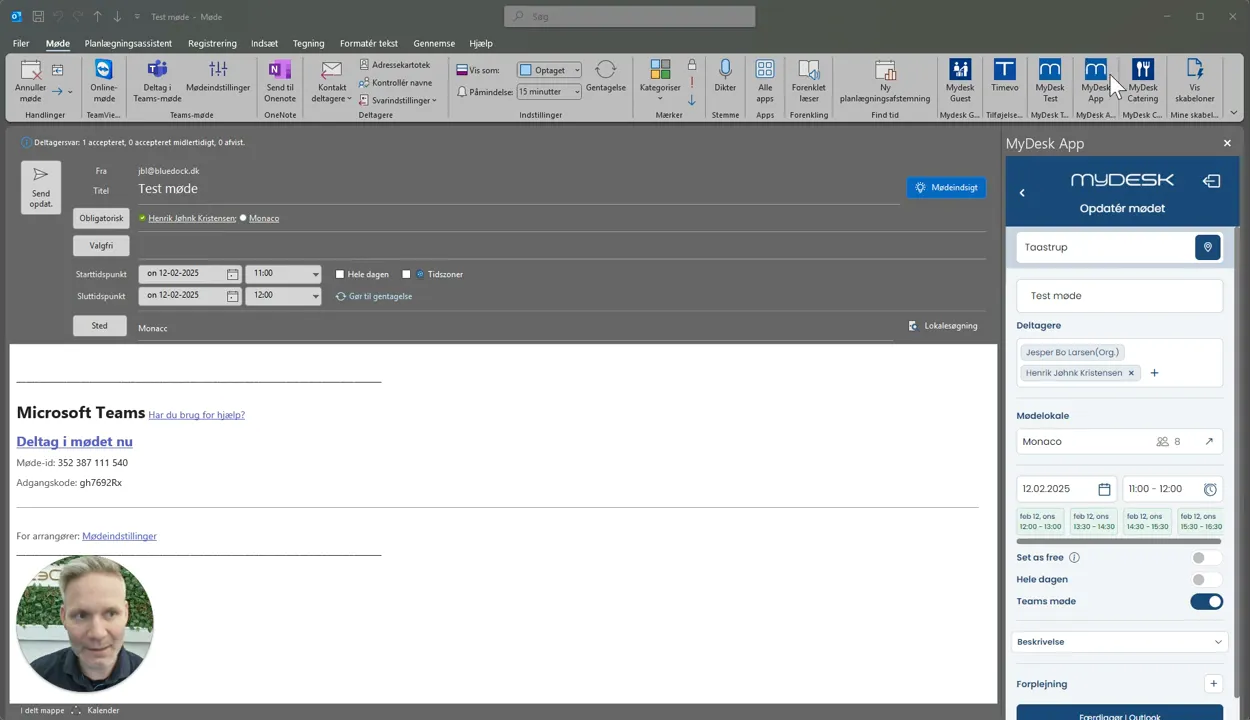
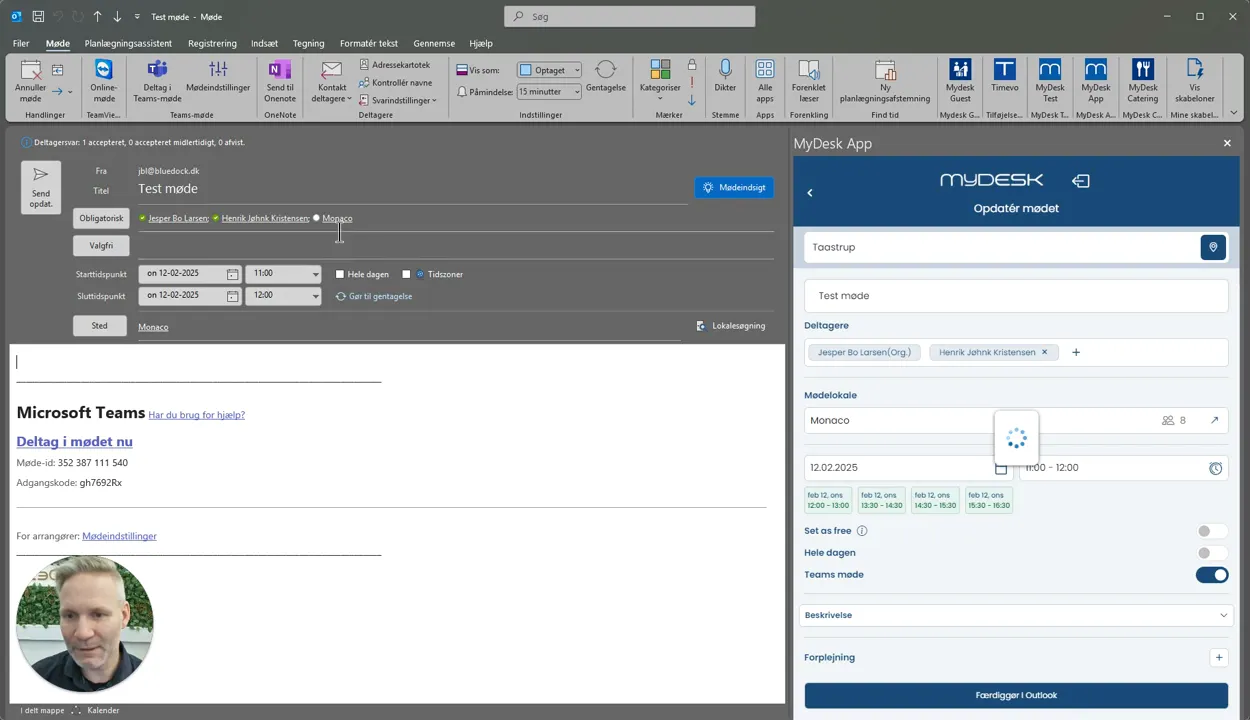
Create the meeting request with date and time and open the MyDesk add-on.
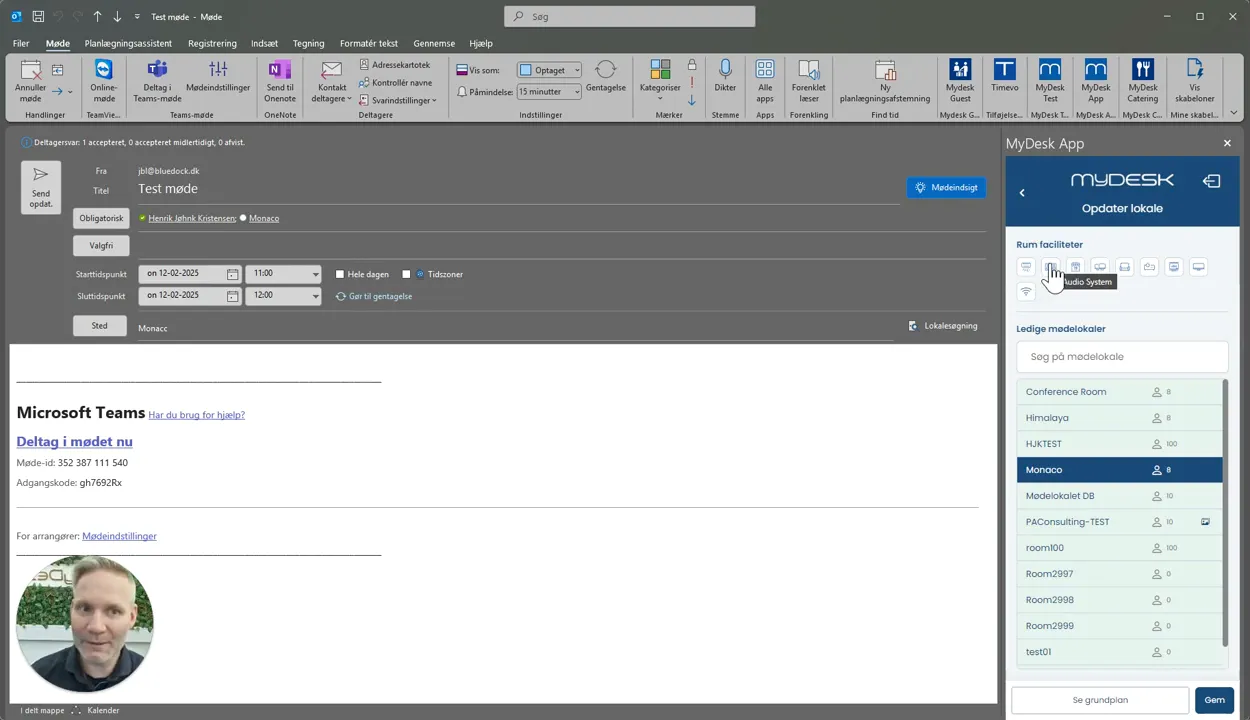
Filter by capacity and required facilities.
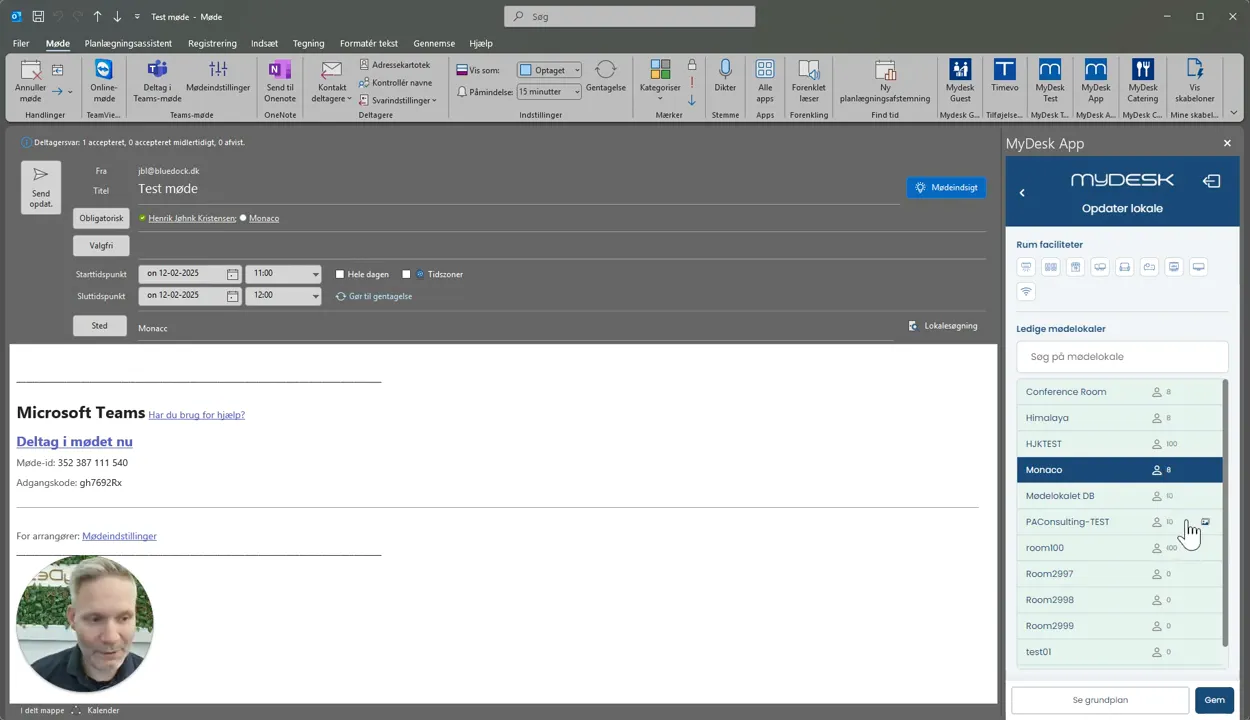
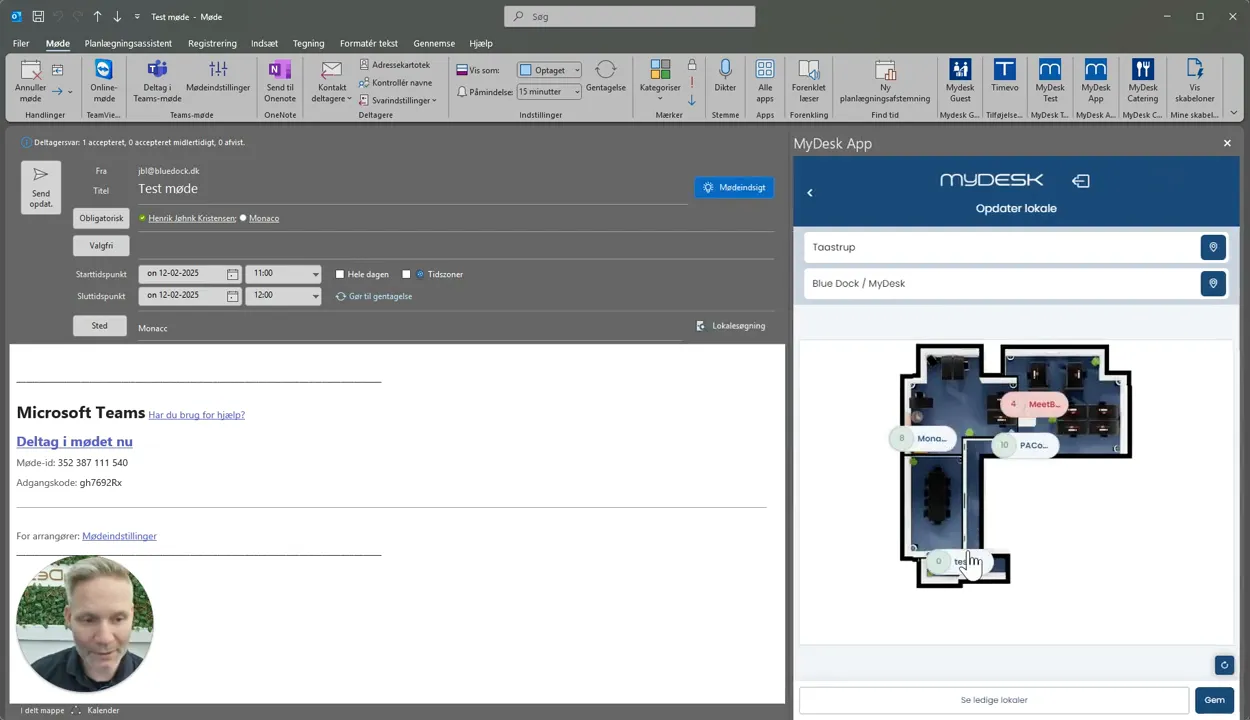
See room information and any photos, and use the floor plan to find the location.
Select an available room and press Finish in Outlook.
Send the meeting invitation and check that the room has accepted.
Se den oprindelige video
Video og skærmbilleder kan vise en tidligere version af MyDesk.
See screenshots from the original guide (5)
Skærmbillederne stammer fra den tidligere guide og kan vise en ældre brugerflade.