This is how you do it
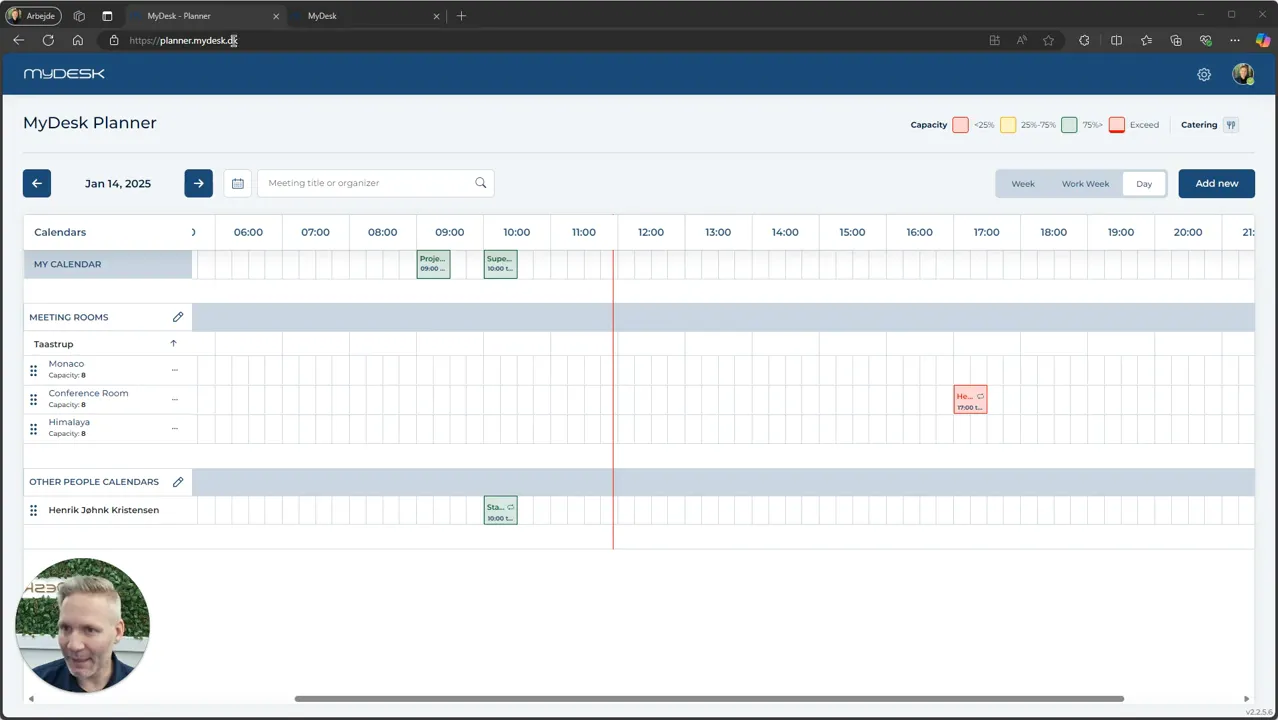
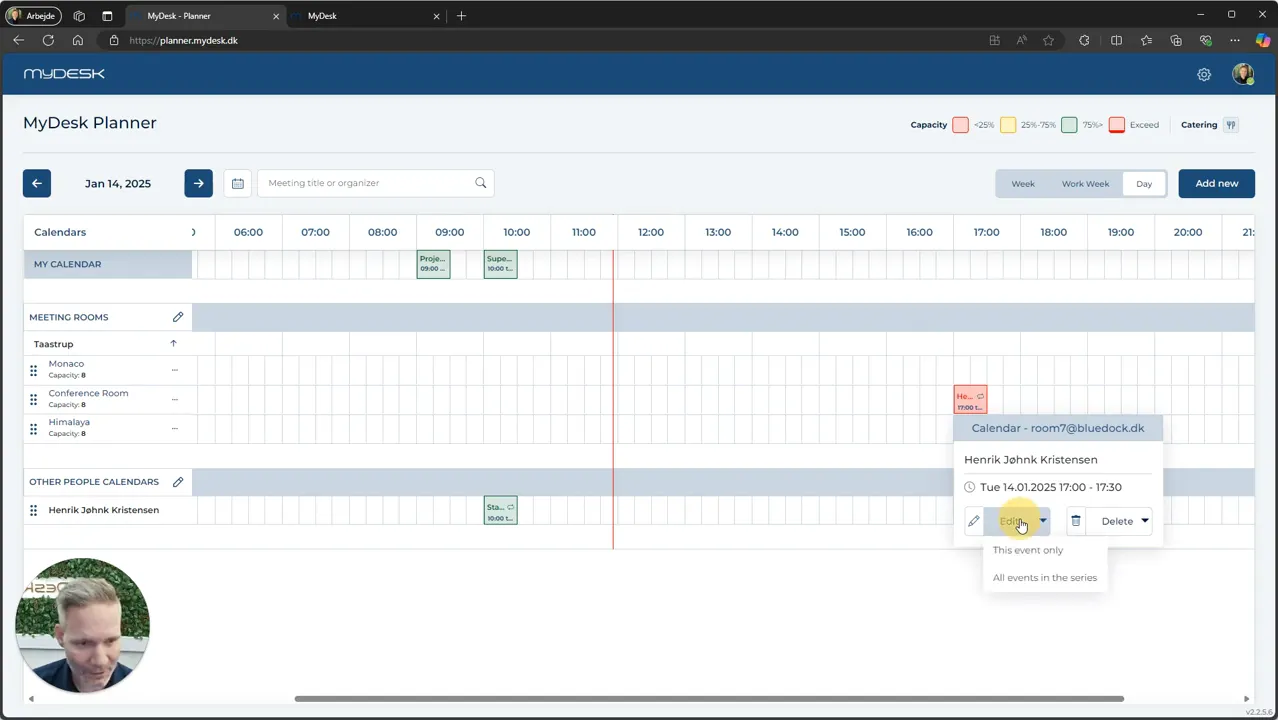
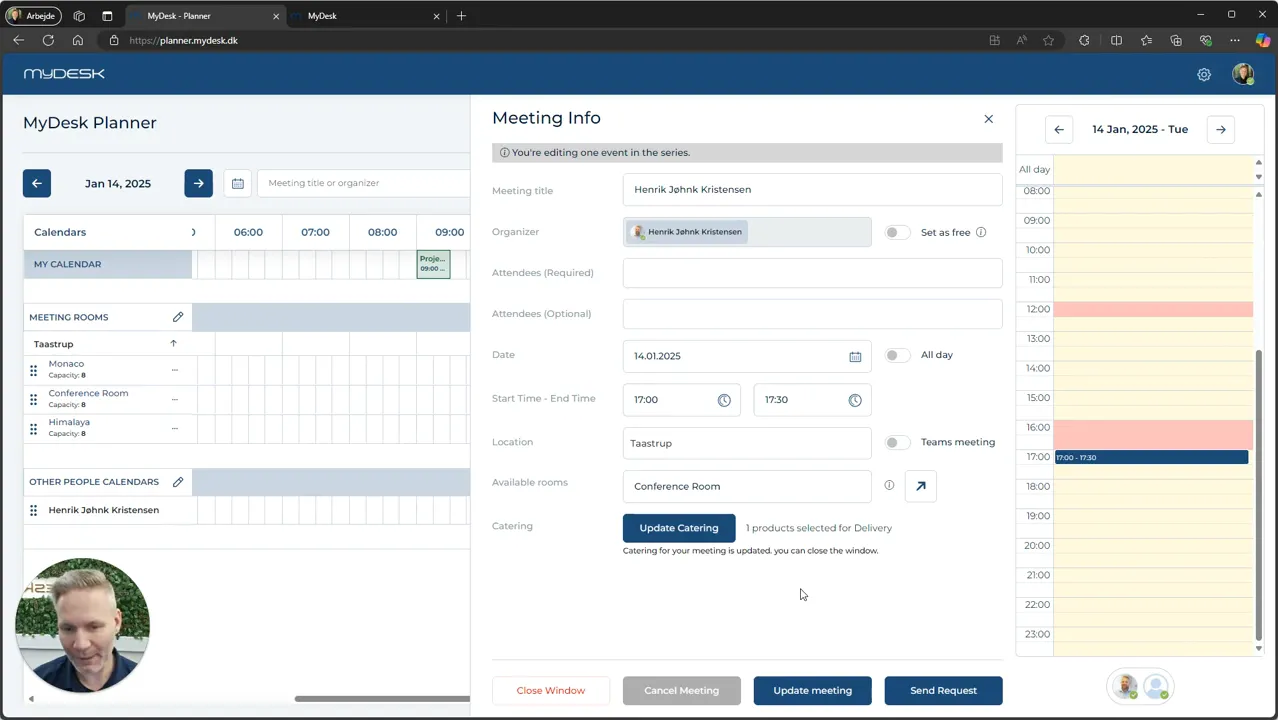
Find the date and relevant meeting in Planner and open it.
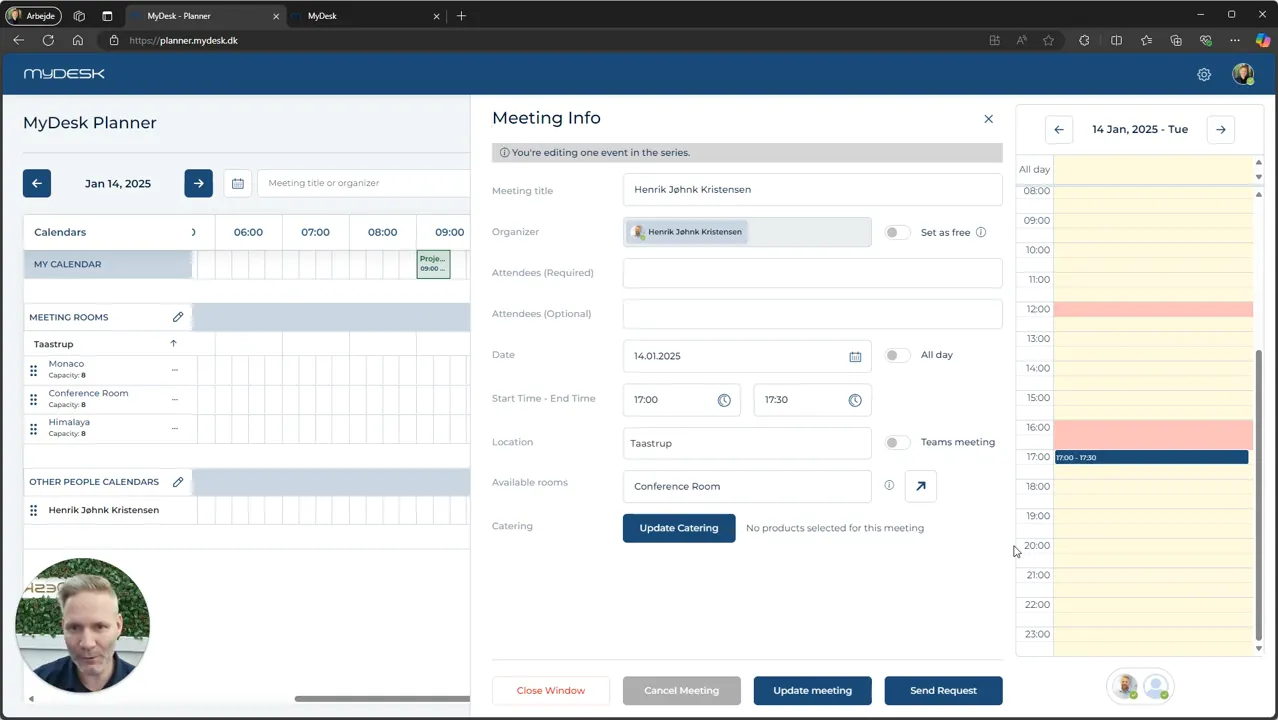
In the case of a series of meetings, you must select the specific event to which the catering relates.
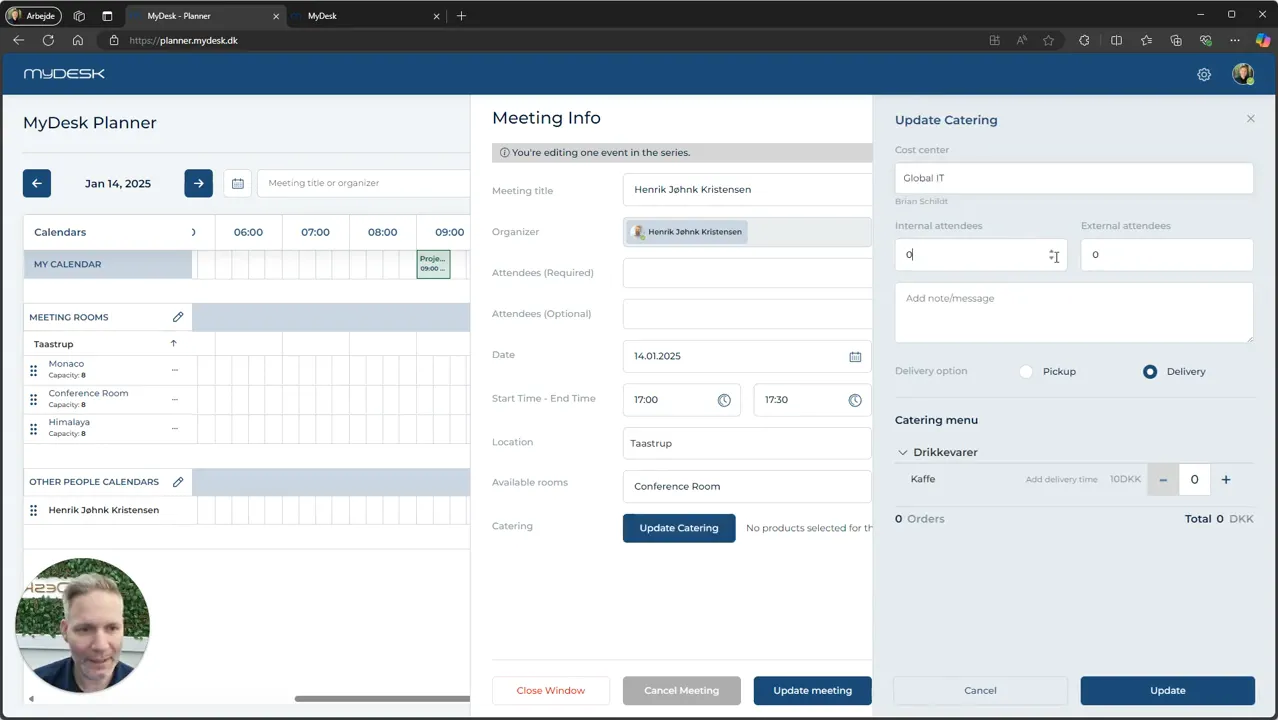
Select Update Catering and check the number of participants, products and message to the canteen.
Press Update to save the catering, then close the meeting window.
The product selection may be limited by the canteen's deadlines. An empty or locked menu is not necessarily an error in Planner.
See screenshots from the original guide (5)
The screenshots are from the previous guide and may show an older user interface.