Sådan gør du
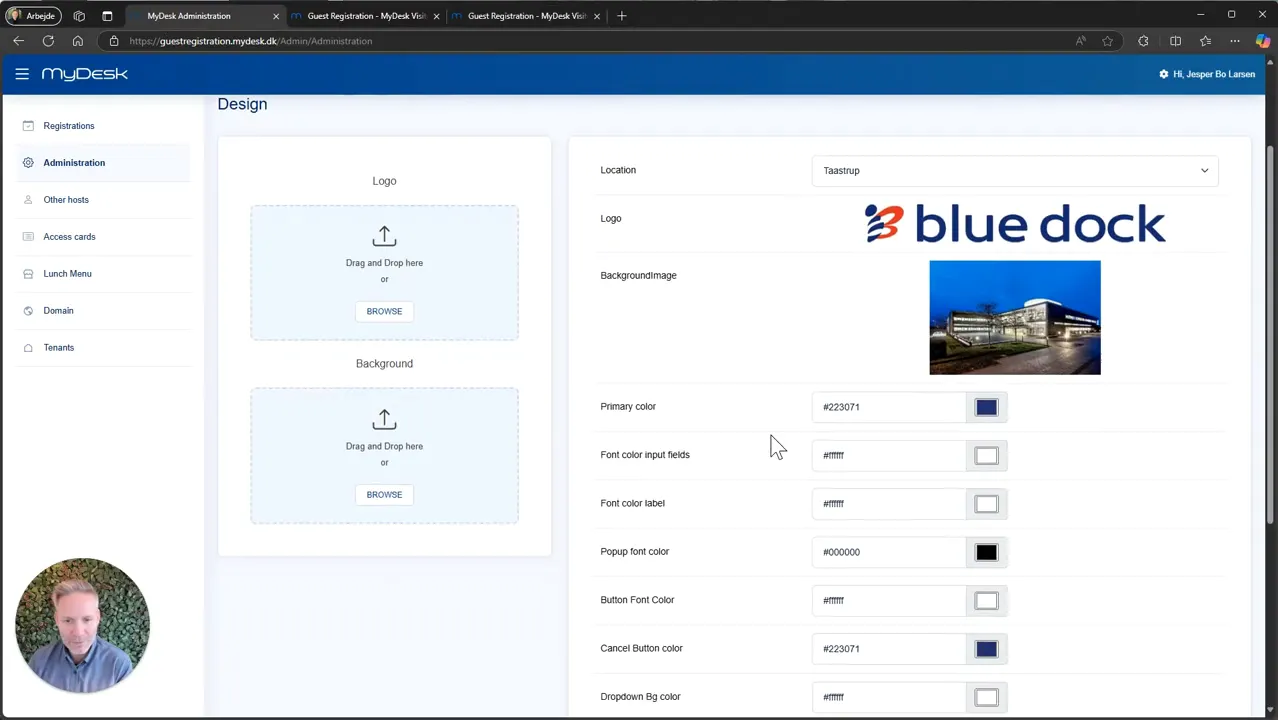
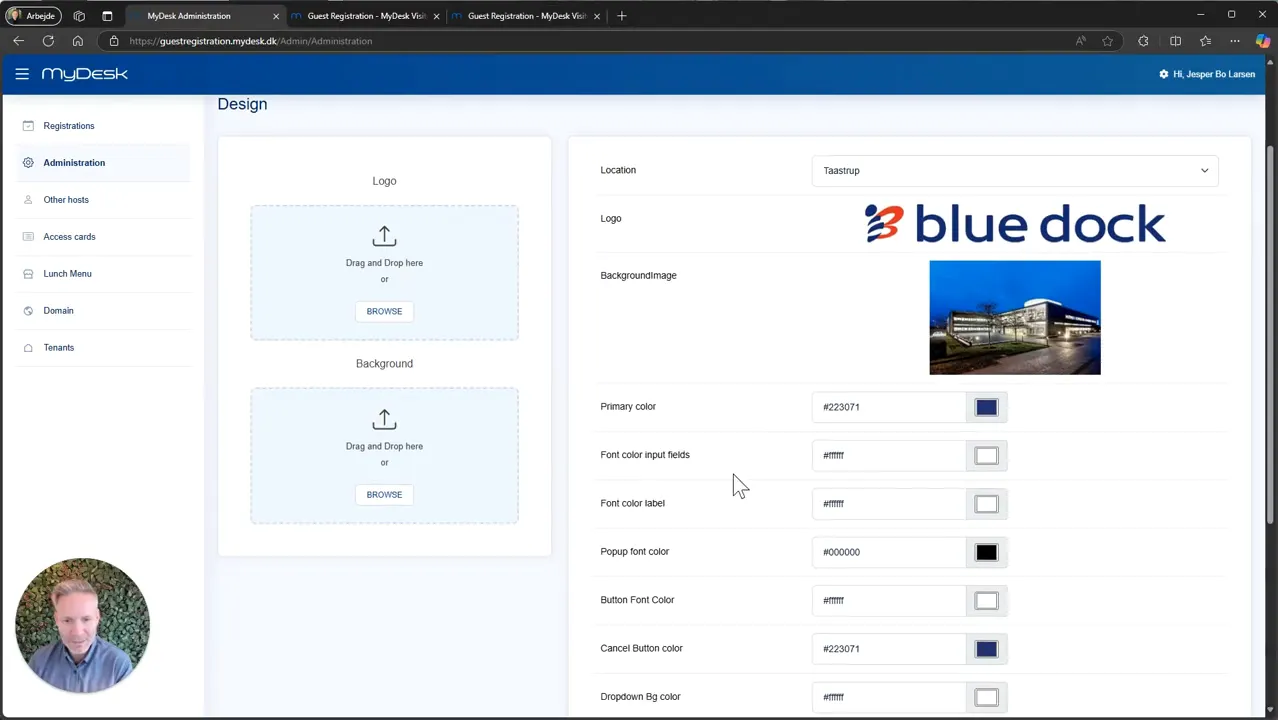
Select the location in the administration and add your logo.
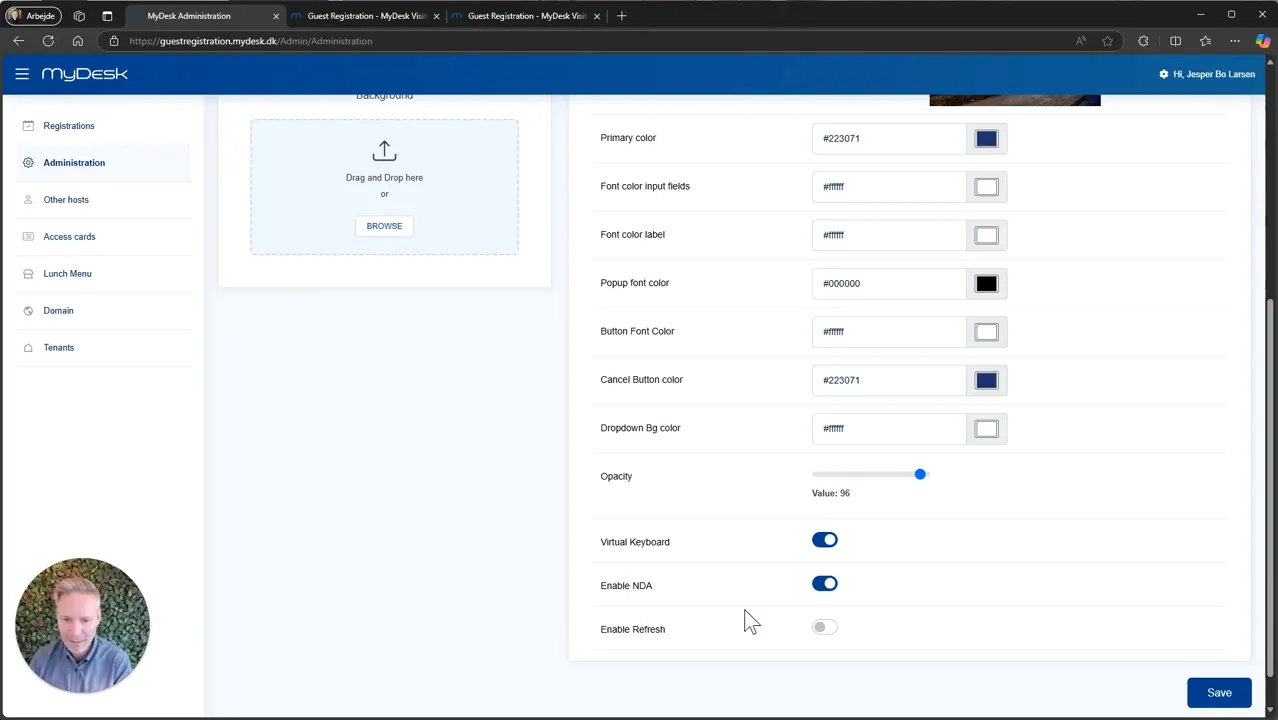
Customize background, colors and fonts. Check that text and fields are legible on the guest screen.
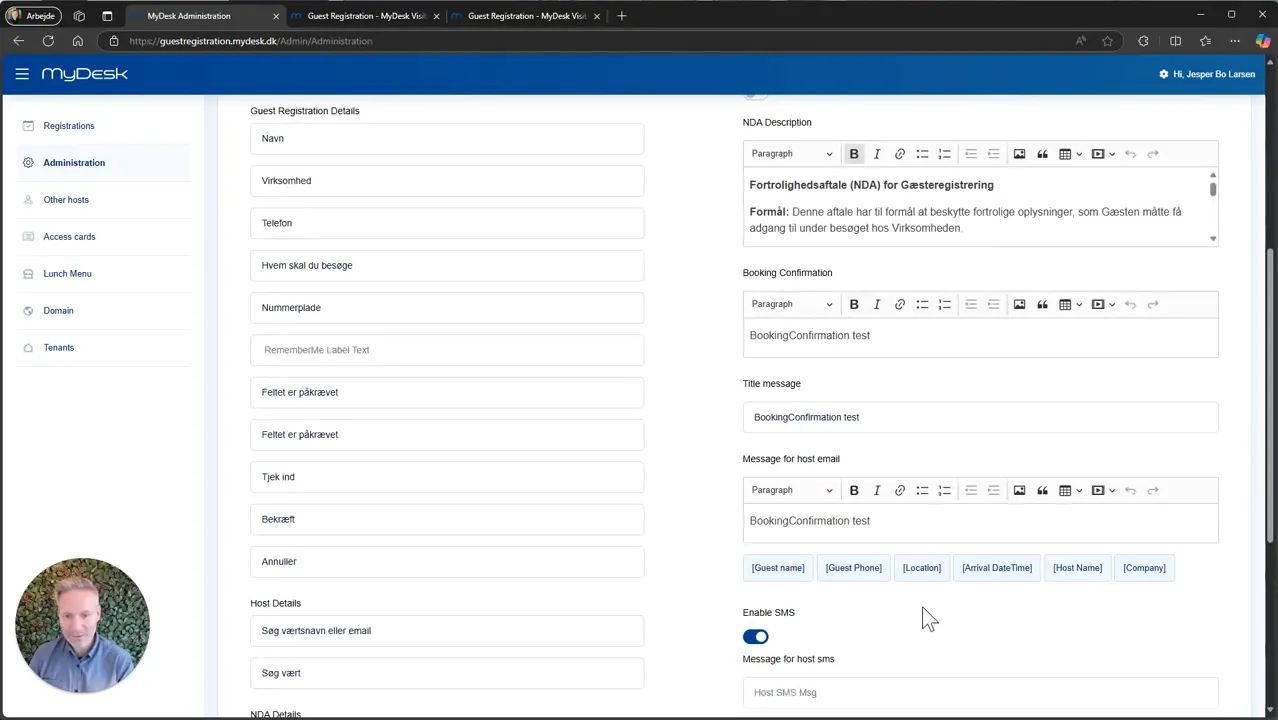
Enable virtual keyboard if the screen lacks a physical keyboard. Add the agreed policy or NDA if guests must agree to it upon arrival.
Customize texts and host messages in the languages you use. SMS requires that the SMS function is activated.
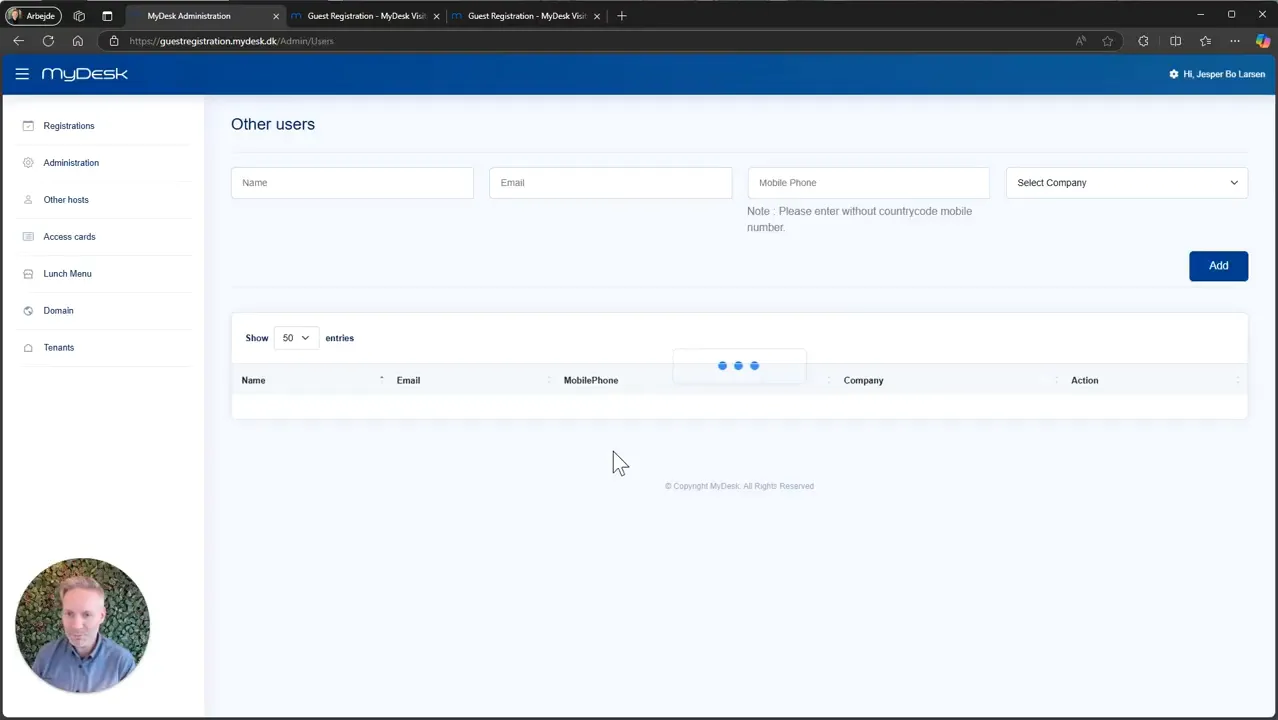
Review administrator access and any other businesses in a multi-user building, and check the completed check-in view.
Se den oprindelige video
Video og skærmbilleder kan vise en tidligere version af MyDesk.
See screenshots from the original guide (5)
Skærmbillederne stammer fra den tidligere guide og kan vise en ældre brugerflade.