This is how you do it
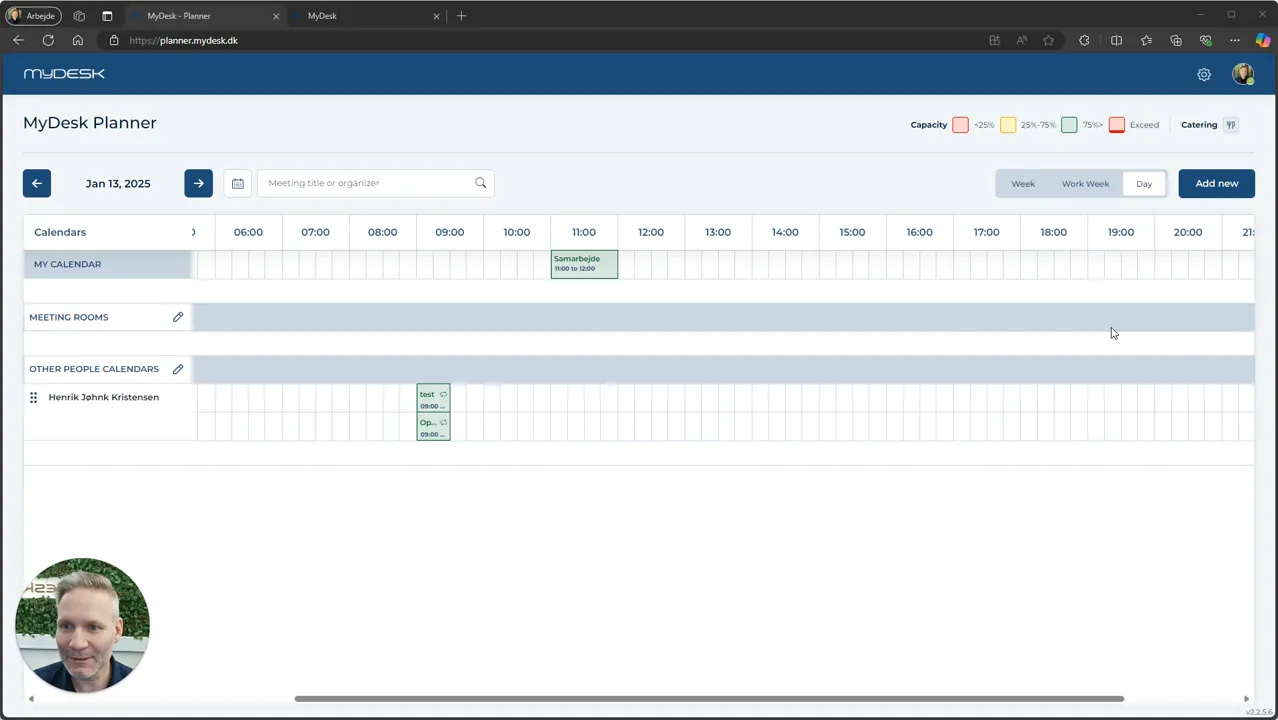
Open Planner and find Meeting Room on the left side.
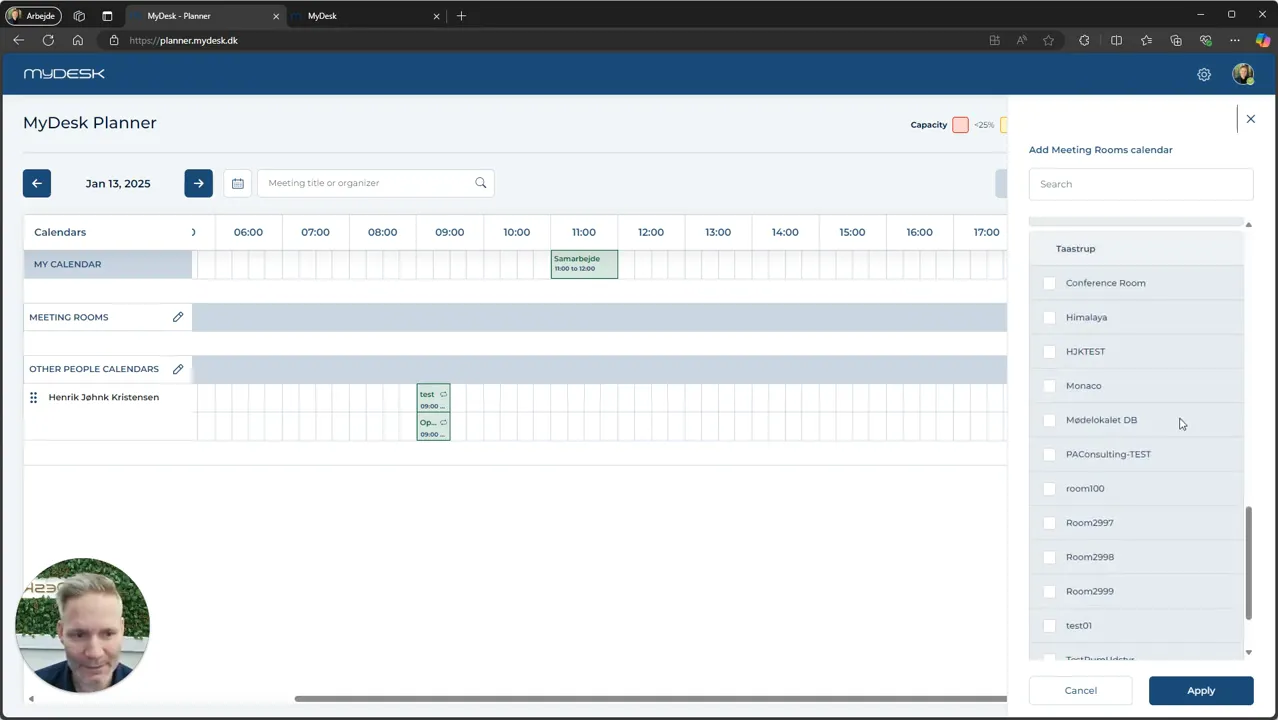
Tap the pencil, search for rooms and select the relevant rooms in the locations you are working with.
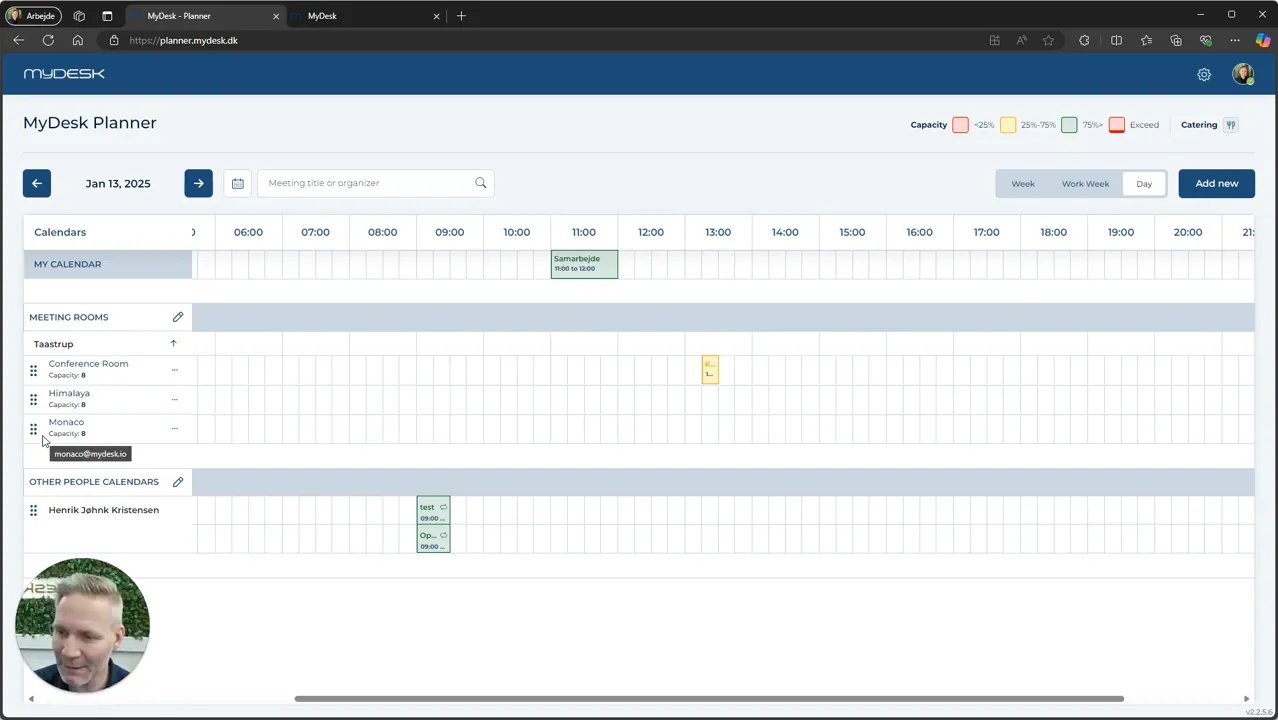
Press Apply to display the selected premises.
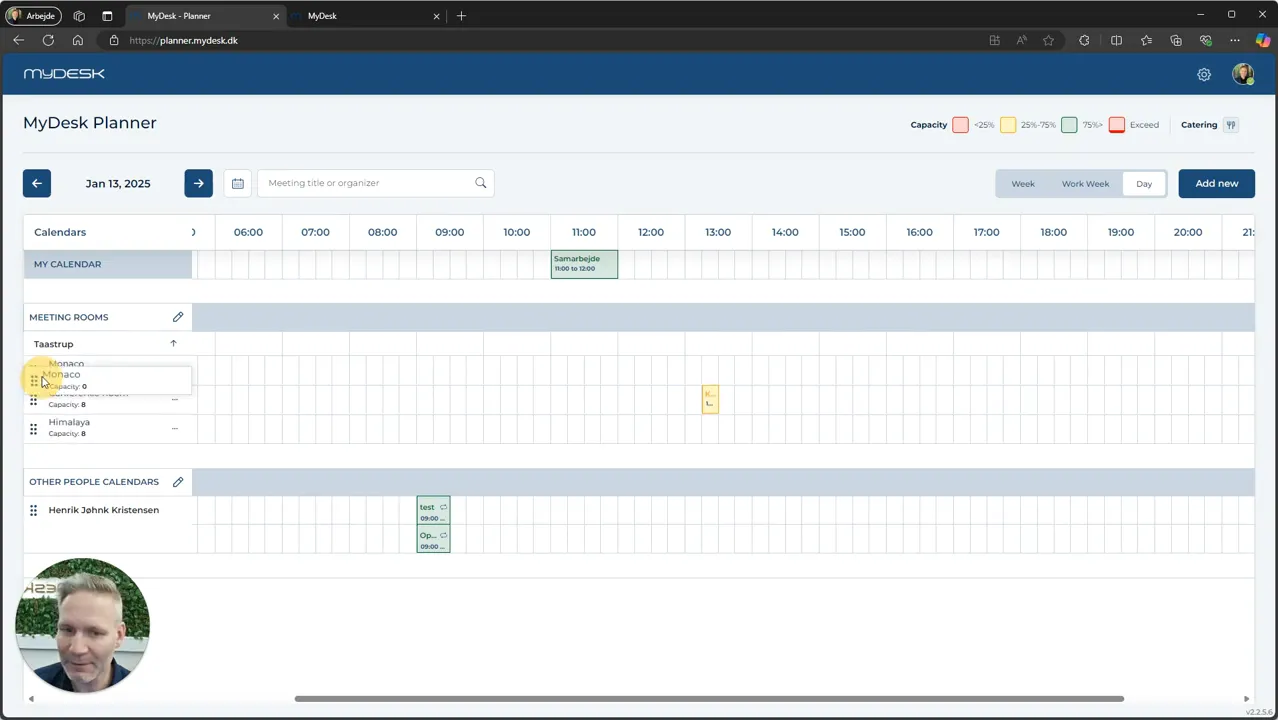
Drag the rooms to the order you want and save the settings.
Check the overview before creating the next booking.
See screenshots from the original guide (4)
The screenshots are from the previous guide and may show an older user interface.