Sådan gør du
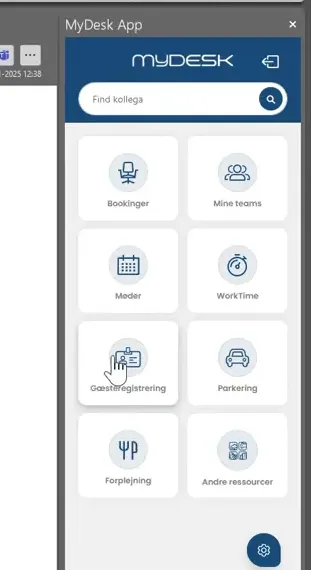
Open MyDesk in Outlook or the mobile app and select Guest Registration.
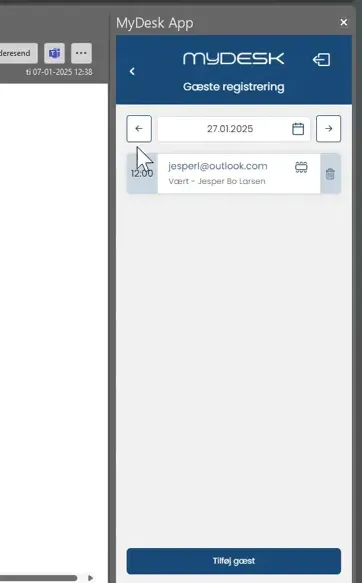
Select the visit date and open the guest from the list of invited guests.
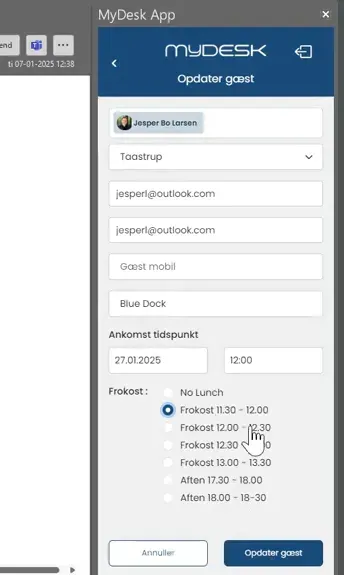
Select the desired lunch option and press Update Guest.
Check that the guest's lunch selection is saved. The canteen can then include the guest in the registrations.
Se den oprindelige video
Video og skærmbilleder kan vise en tidligere version af MyDesk.
See screenshots from the original guide (3)
Skærmbillederne stammer fra den tidligere guide og kan vise en ældre brugerflade.