Sådan gør du
Open the administration with the necessary rights and select the location.
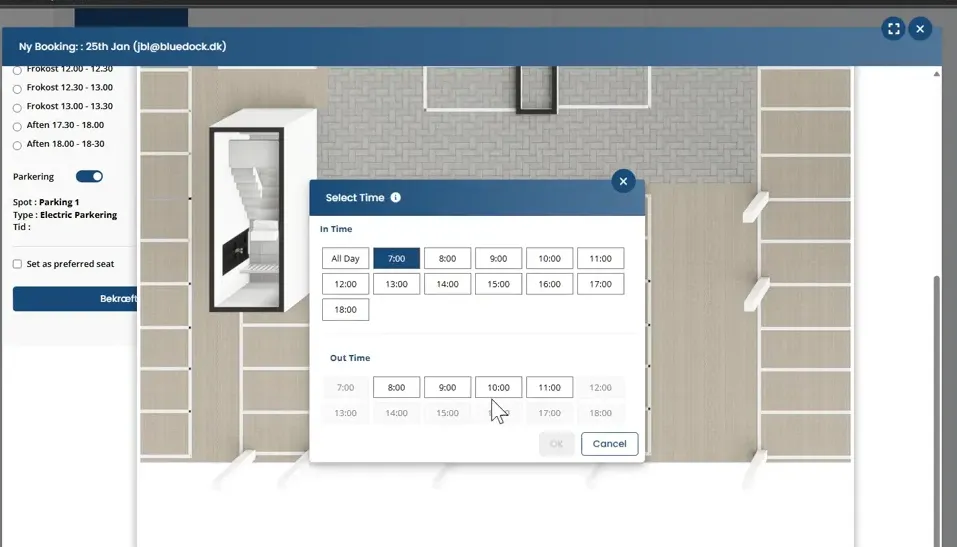
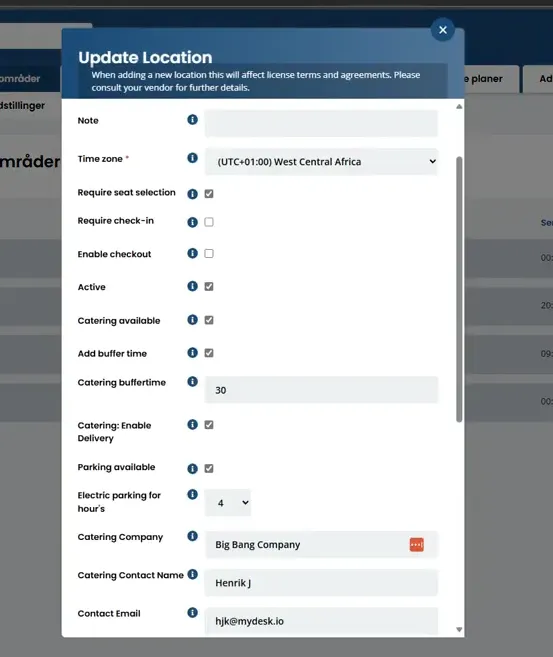
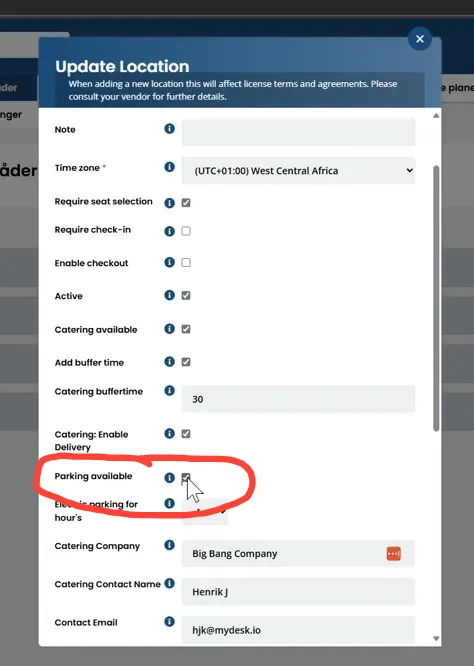
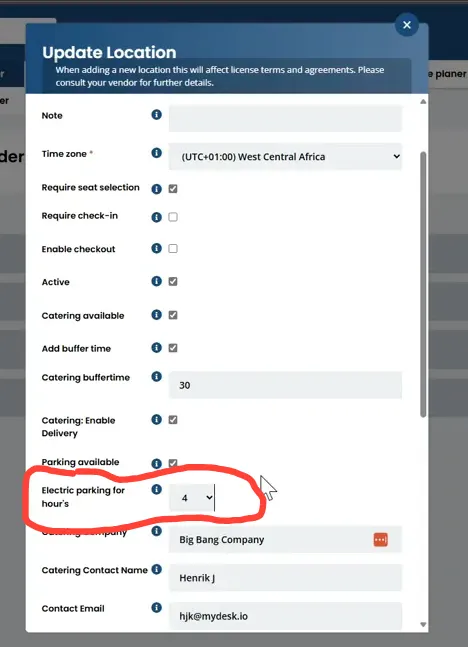
Activate parking via the location's menu, and set booking times and any time limits at charging stations.
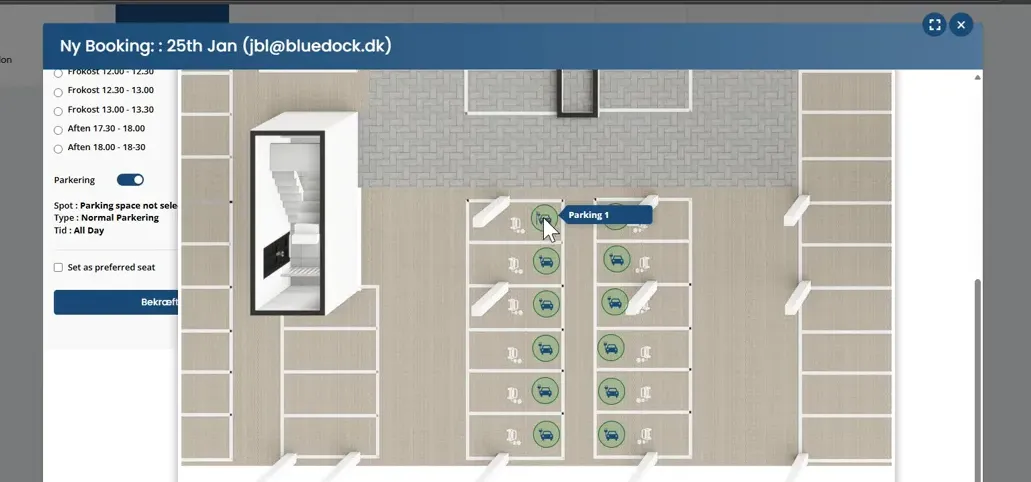
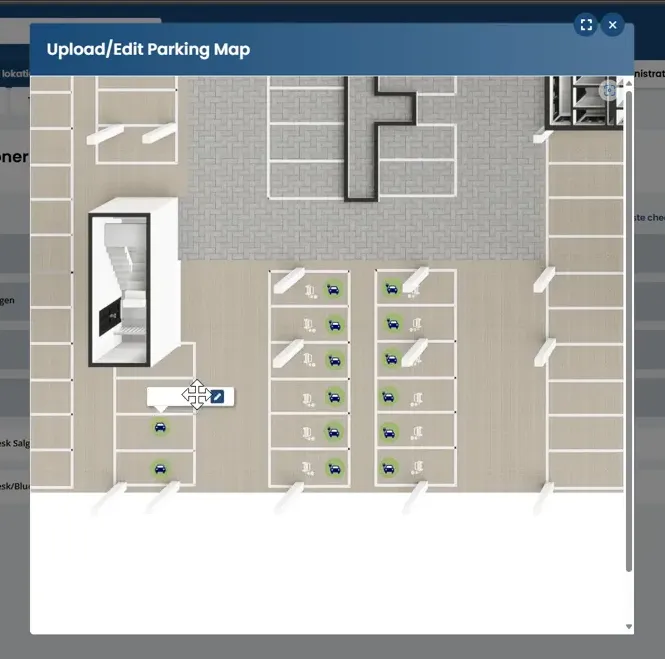
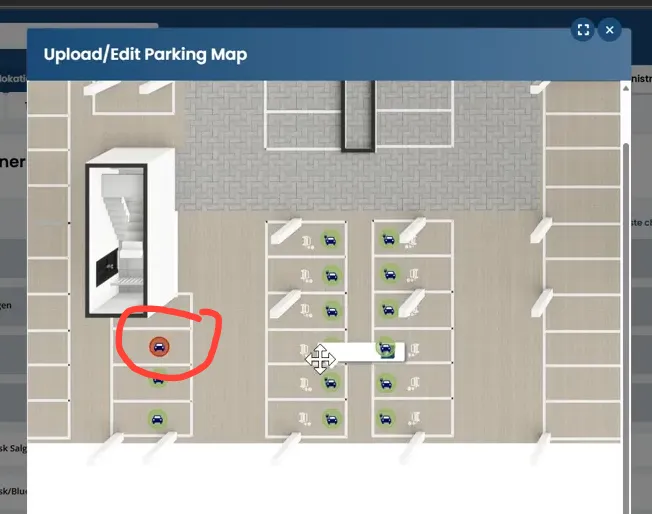
Open the parking map, upload a new map if necessary, and mark and name the bookable spaces.
Mark a seat as inactive if it needs to be temporarily removed from the booking pool. Check that it is not selectable.
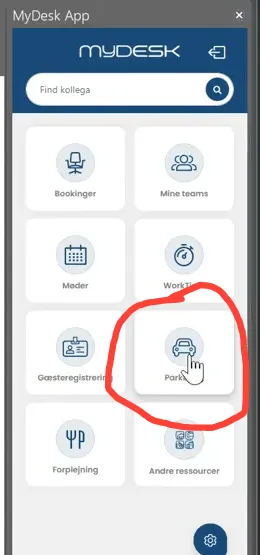
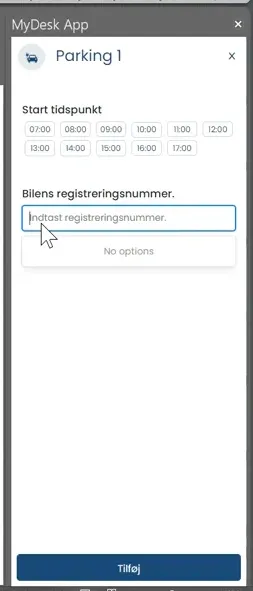
Employees select Parking in MyDesk, enter the date, time and registration number and confirm a free space.
Se den oprindelige video
Video og skærmbilleder kan vise en tidligere version af MyDesk.
See screenshots from the original guide (9)
Skærmbillederne stammer fra den tidligere guide og kan vise en ældre brugerflade.