MyDesk · Guide

Find an available meeting room in Planner

Planner shows availability across the rooms and locations you have access to.

Originally published

Meeting room booking

This is how you do it

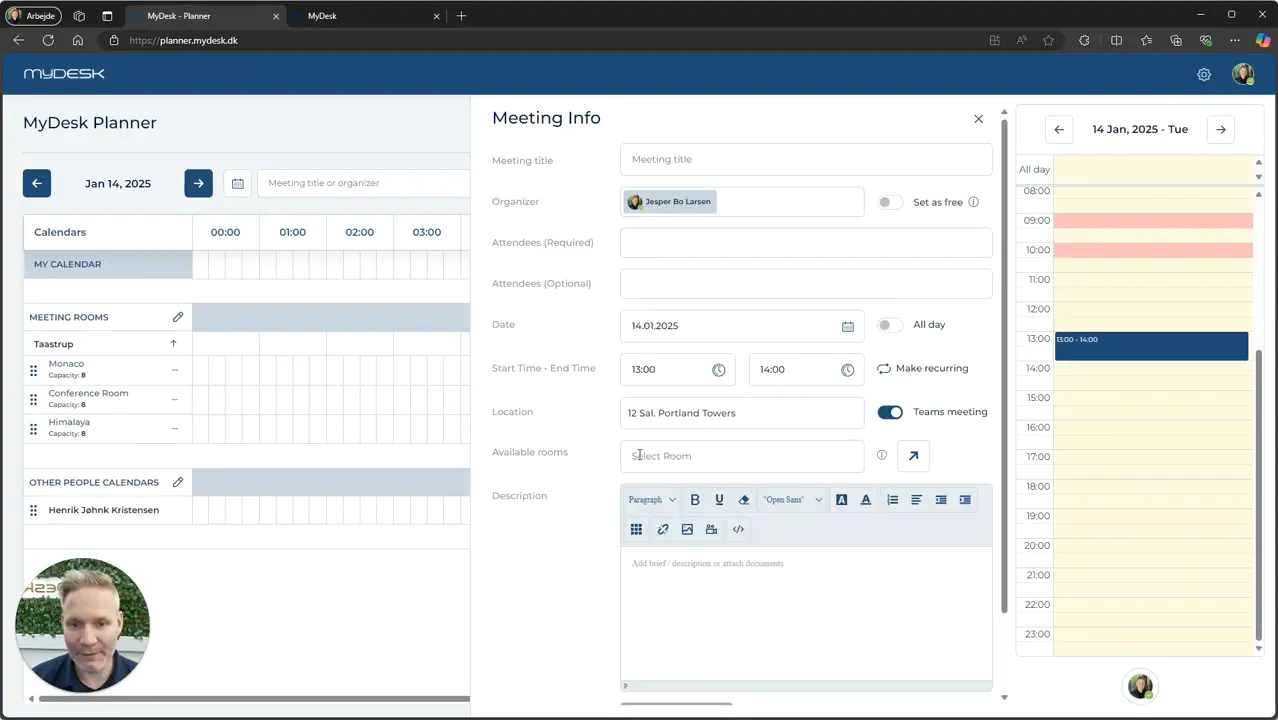
  1. Open Planner and select the date and time.

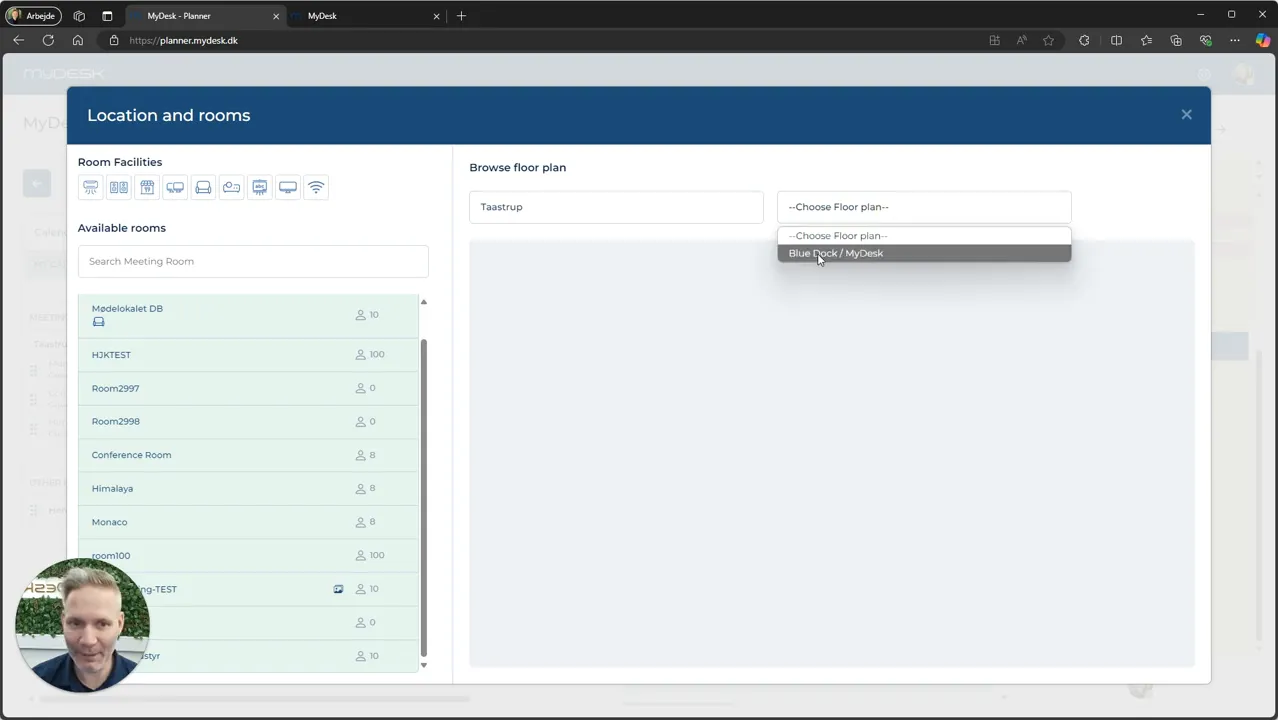
  2. Use the room overview to find available rooms. Change floor or location if necessary.

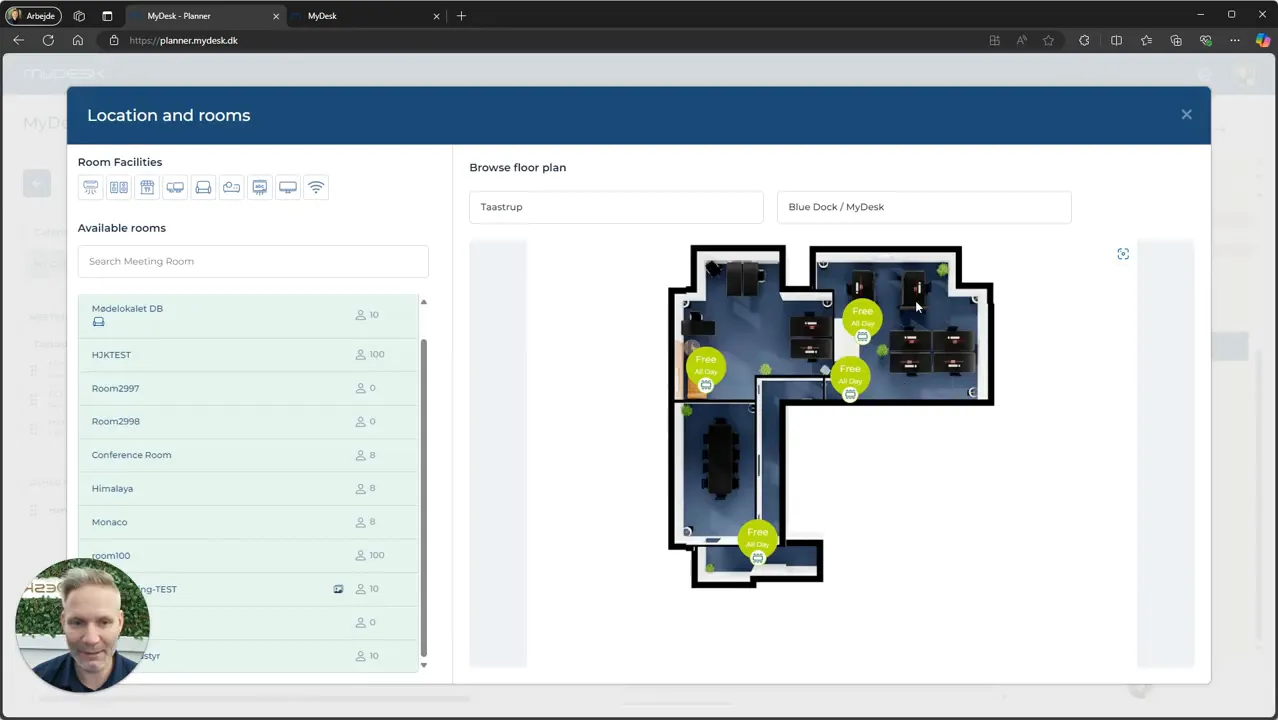
  3. Open the floor plan if you want to see where the premises are located.

  4. Choose an available room, fill in the meeting and confirm the reservation.

  5. Add any catering according to your menu card and order deadlines.

See screenshots from the original guide (5)

The screenshots are from the previous guide and may show an older user interface.
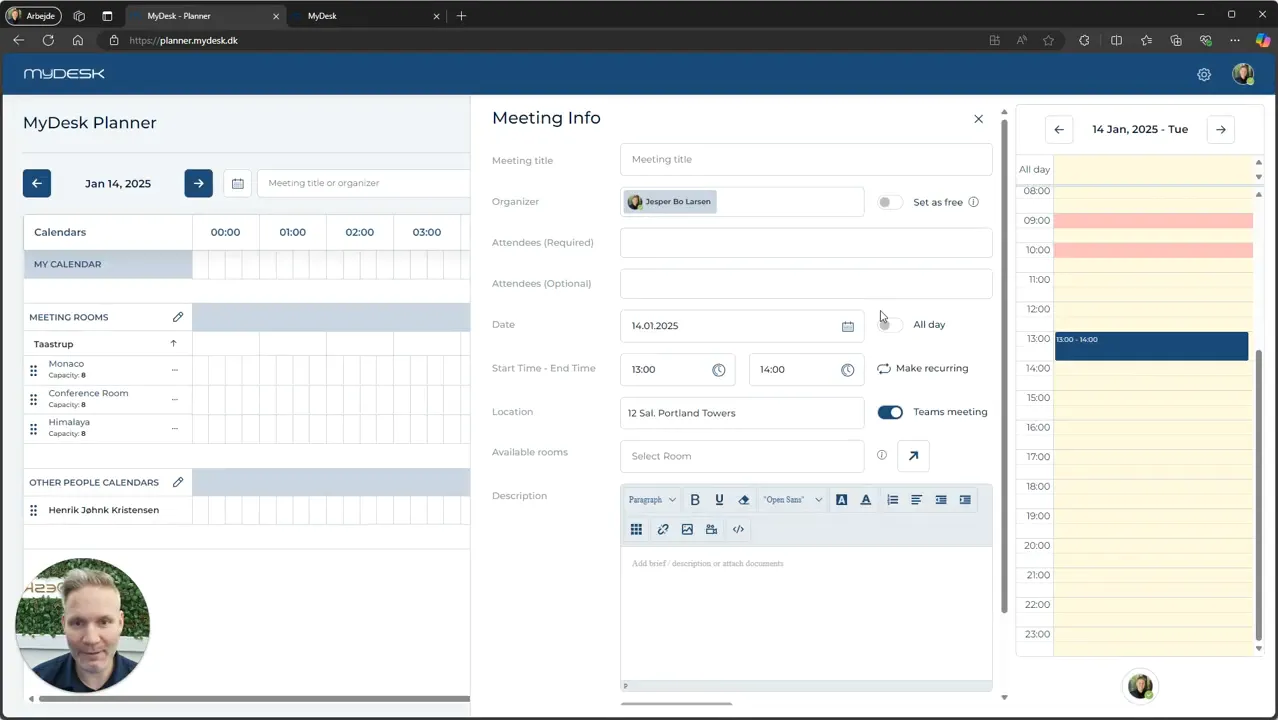
Select time for meeting
Overview of available meeting rooms
Change the location of meeting rooms
Using floor plans to find meeting rooms
Confirmation of meeting room booking

Page coming soon

Explore the platform on our homepage

Book a demo

Open the booking calendar in a new window