Sådan gør du
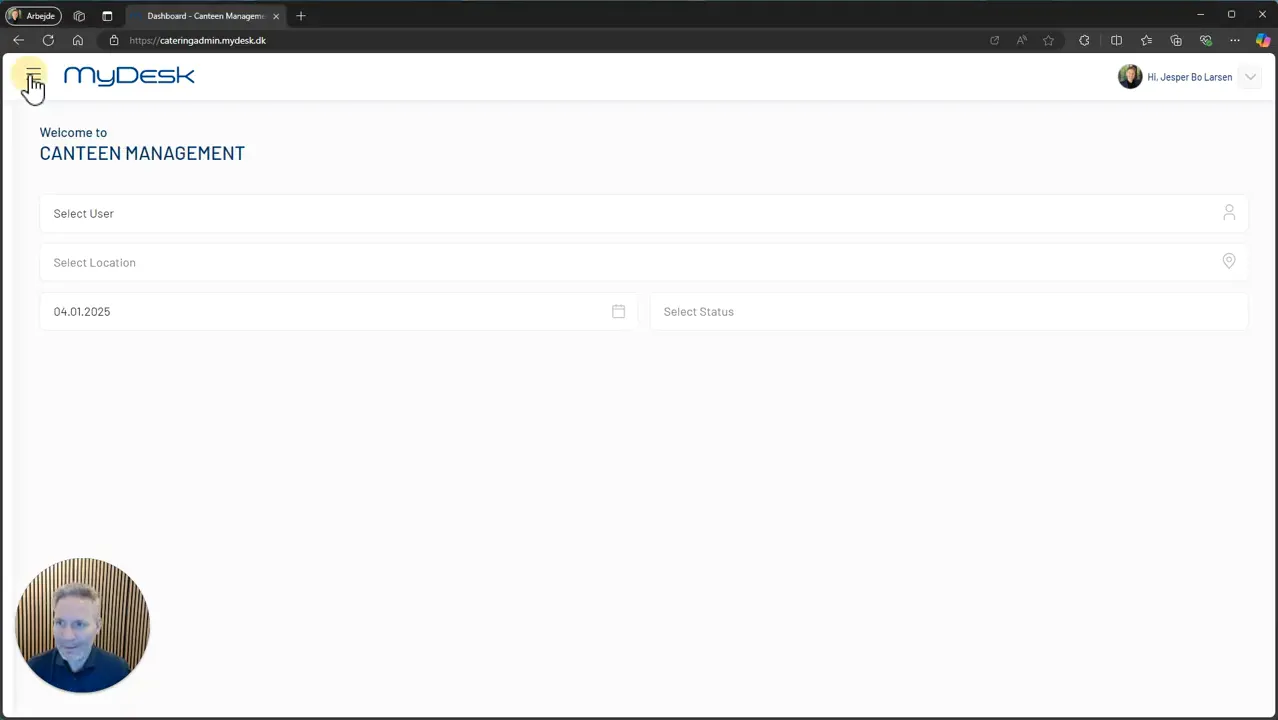
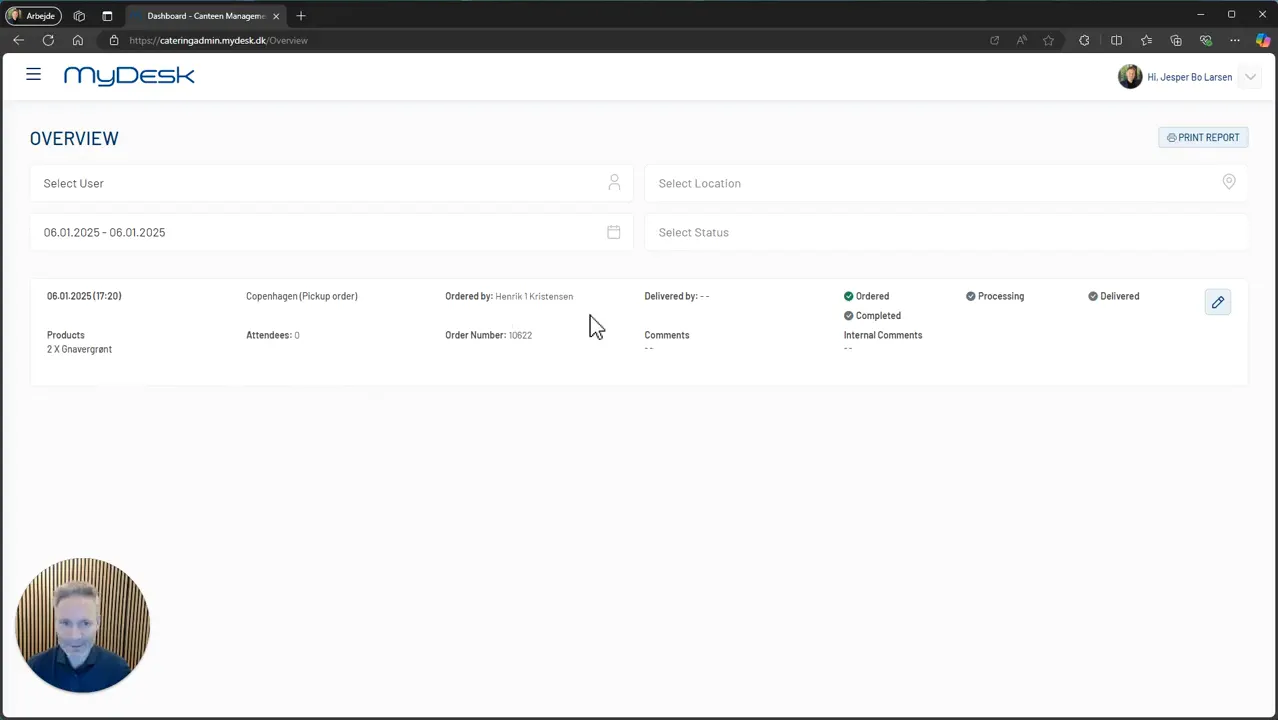
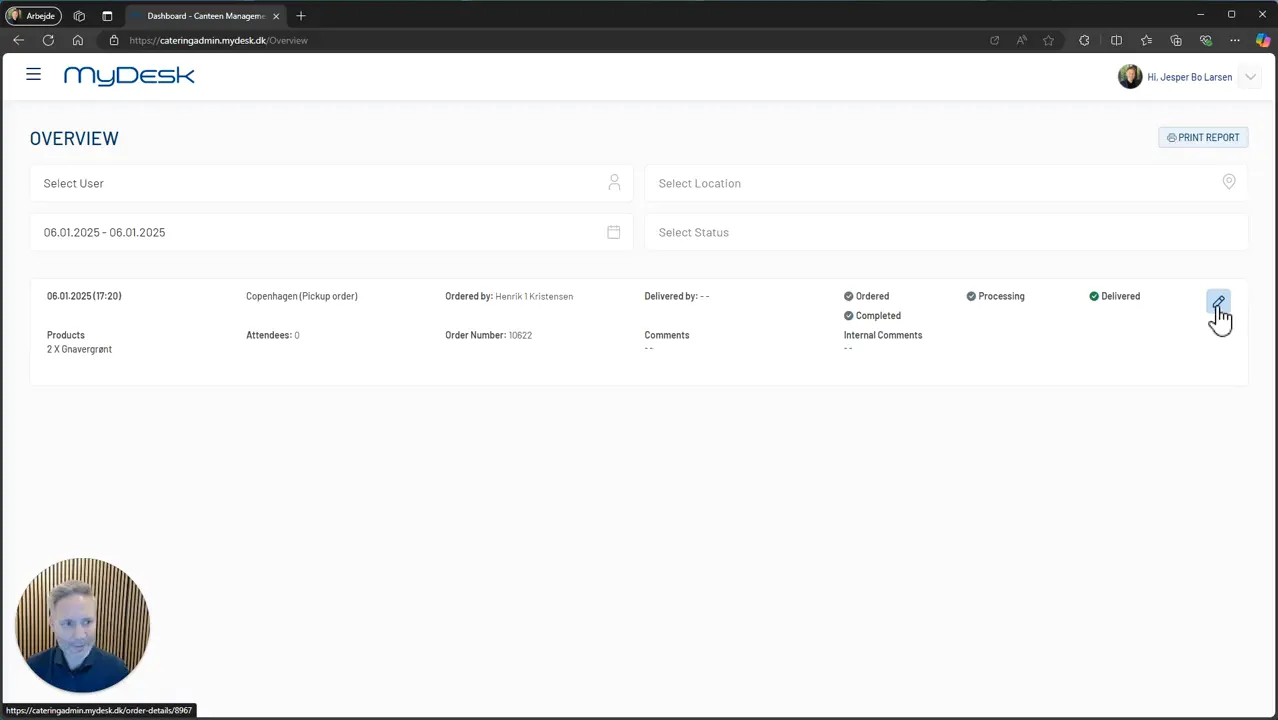
Log in to the catering administration and open Overview.
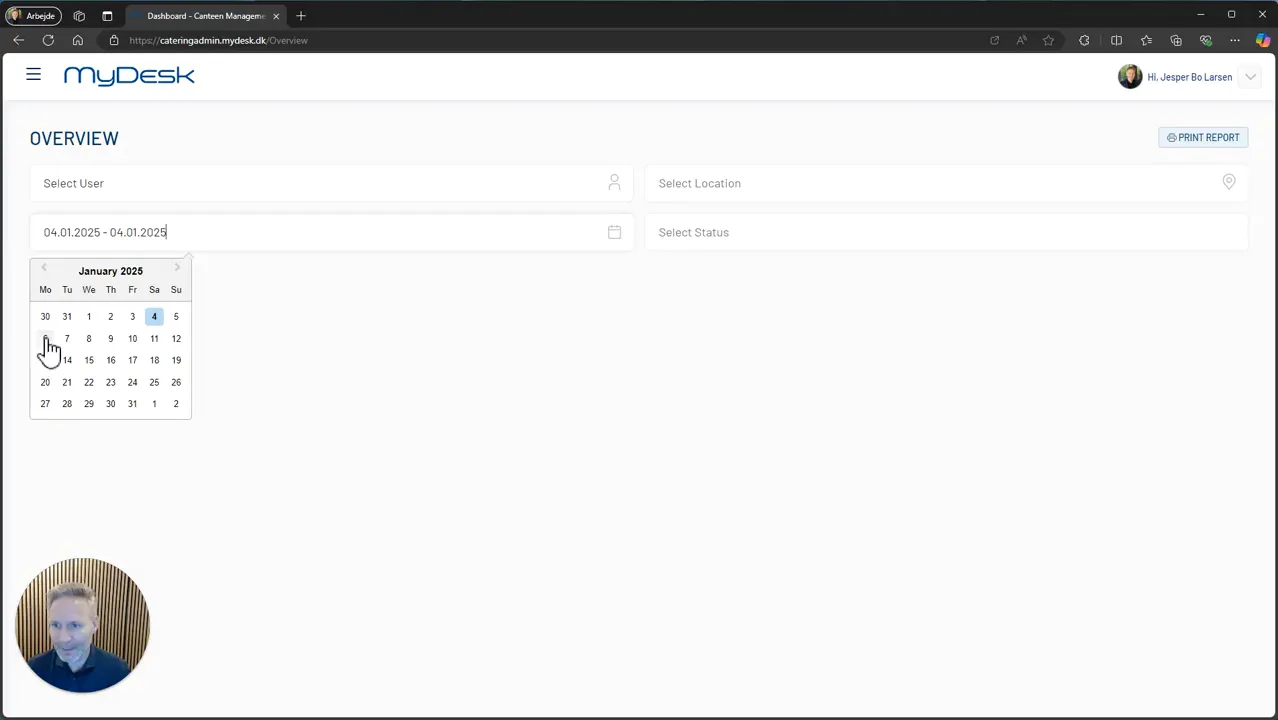
Select a date or period. The wizard's date picker uses double tap to select a single day.
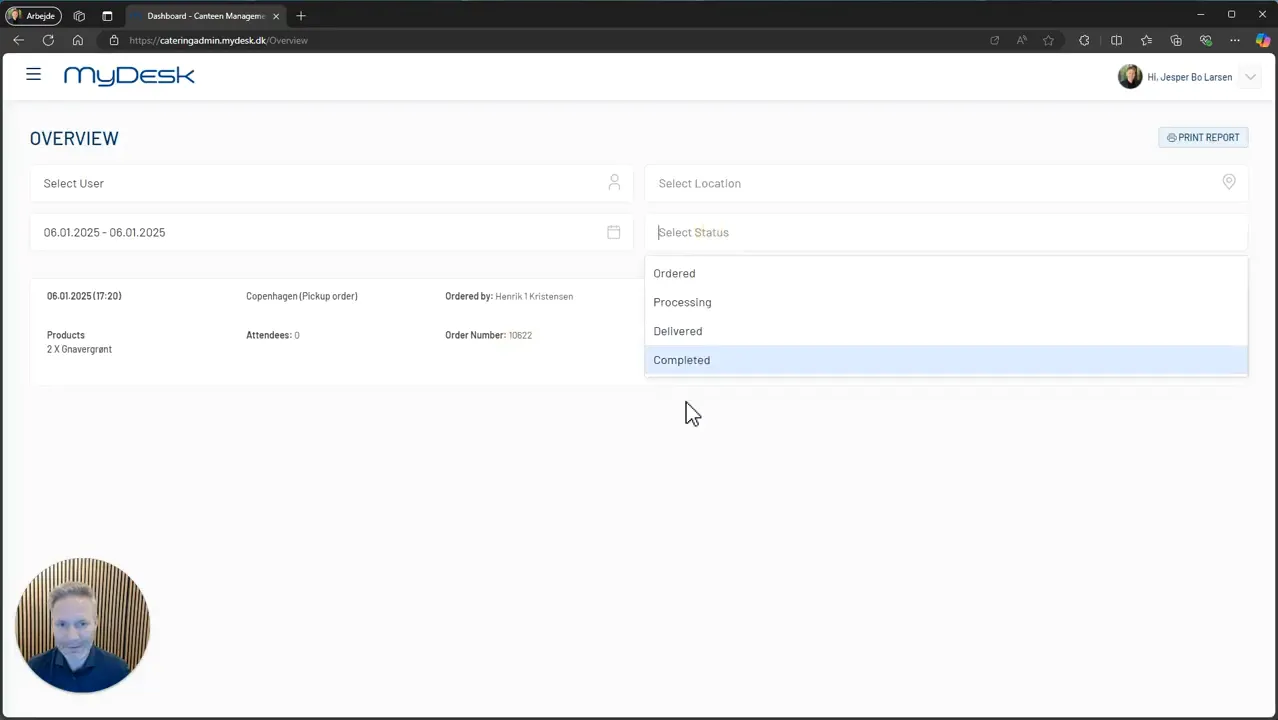
Filter by location and status so that you see the relevant orders.
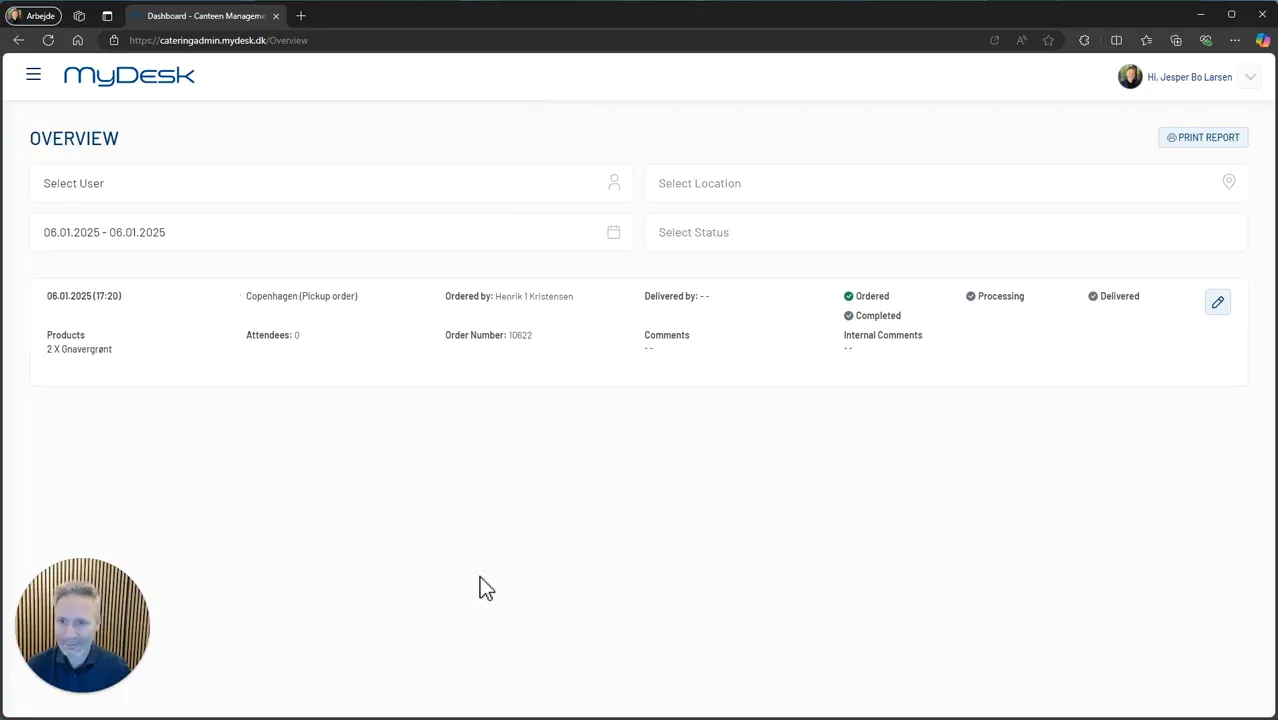
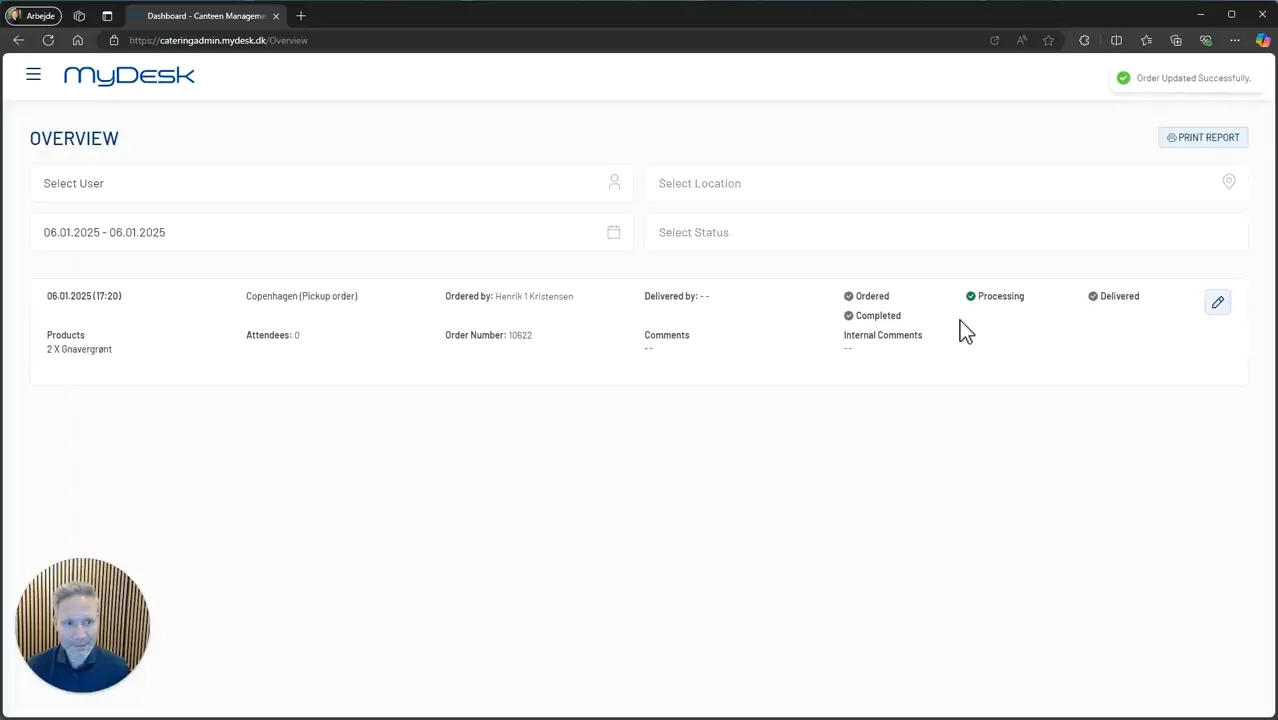
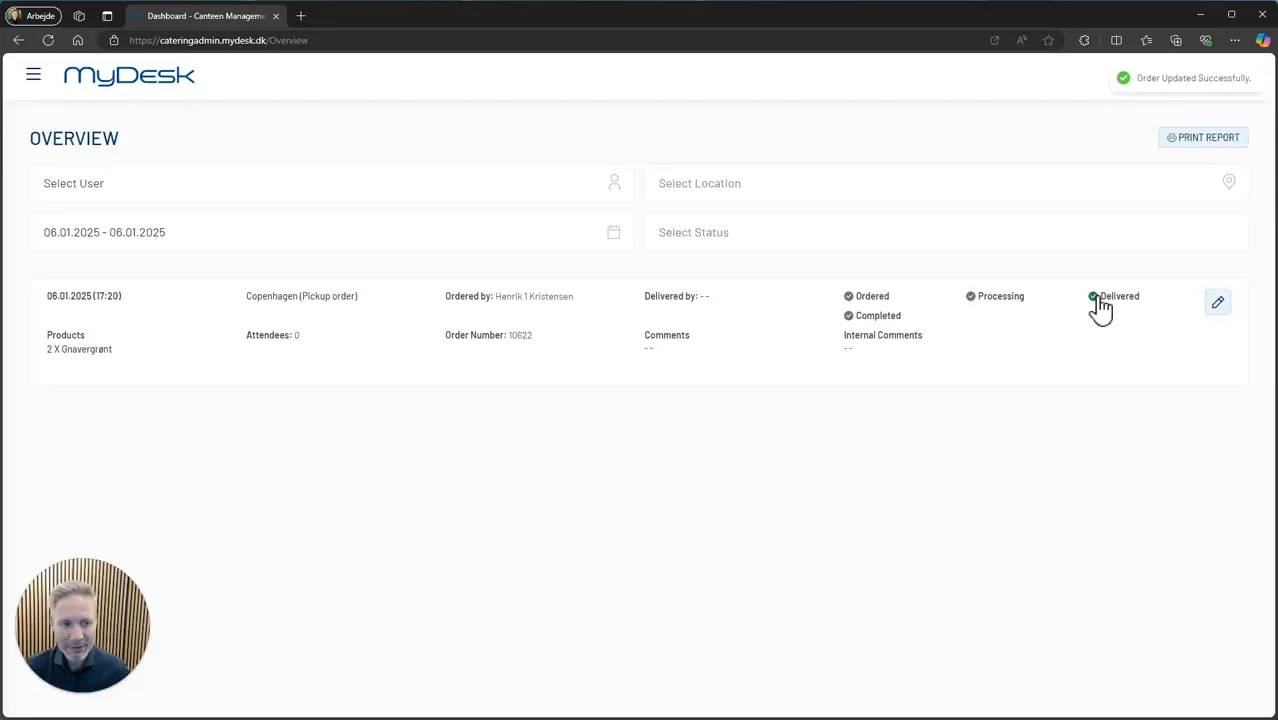
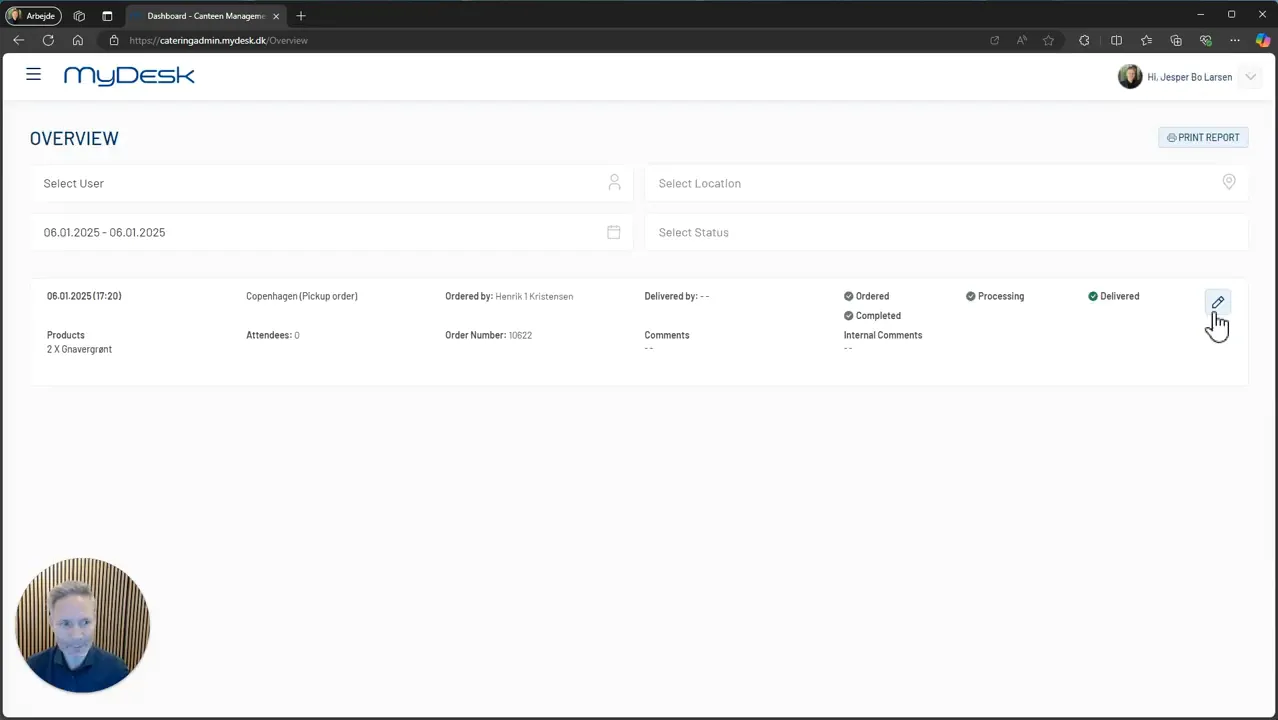
Check delivery time, room, quantity and order status, and follow changes in the overview.
The display can be used on a PC, tablet or a suitable screen in the canteen.
Se den oprindelige video
Video og skærmbilleder kan vise en tidligere version af MyDesk.
See screenshots from the original guide (9)
Skærmbillederne stammer fra den tidligere guide og kan vise en ældre brugerflade.