This is how you do it
Clarify with the administrators of both organizations which rooms and users are to be included.
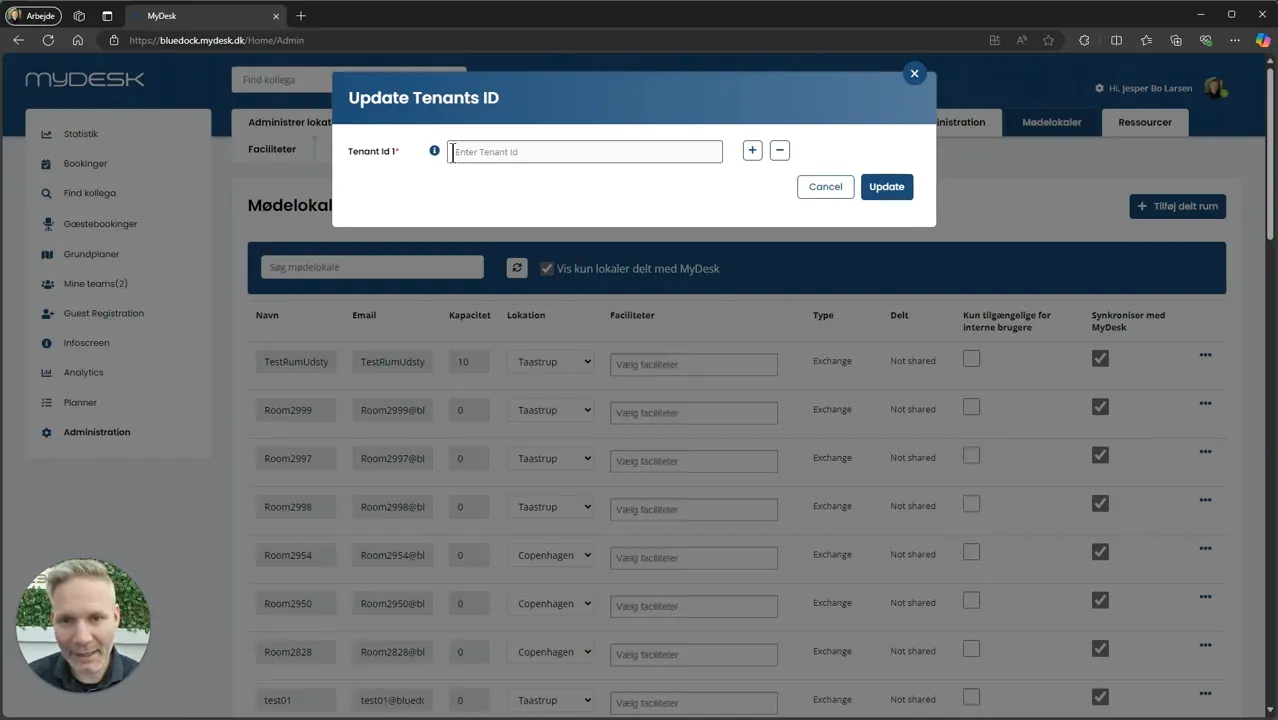
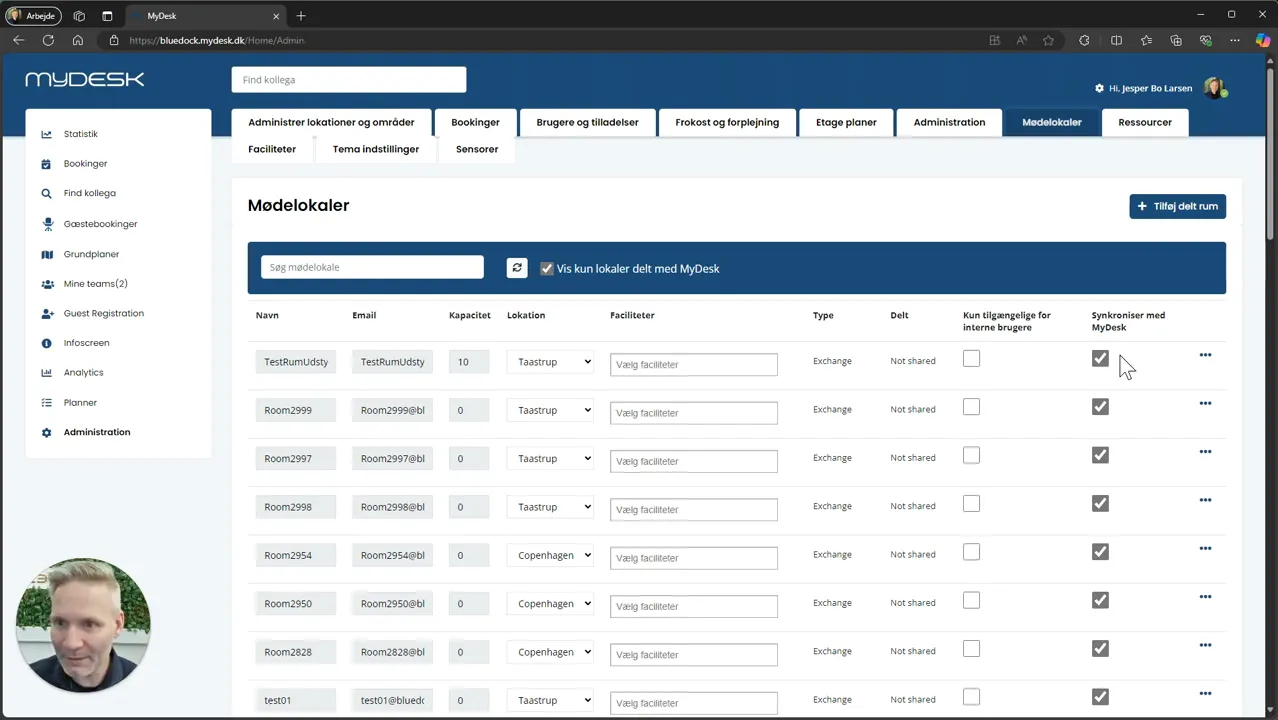
Find the room in MyDesk and select Share.
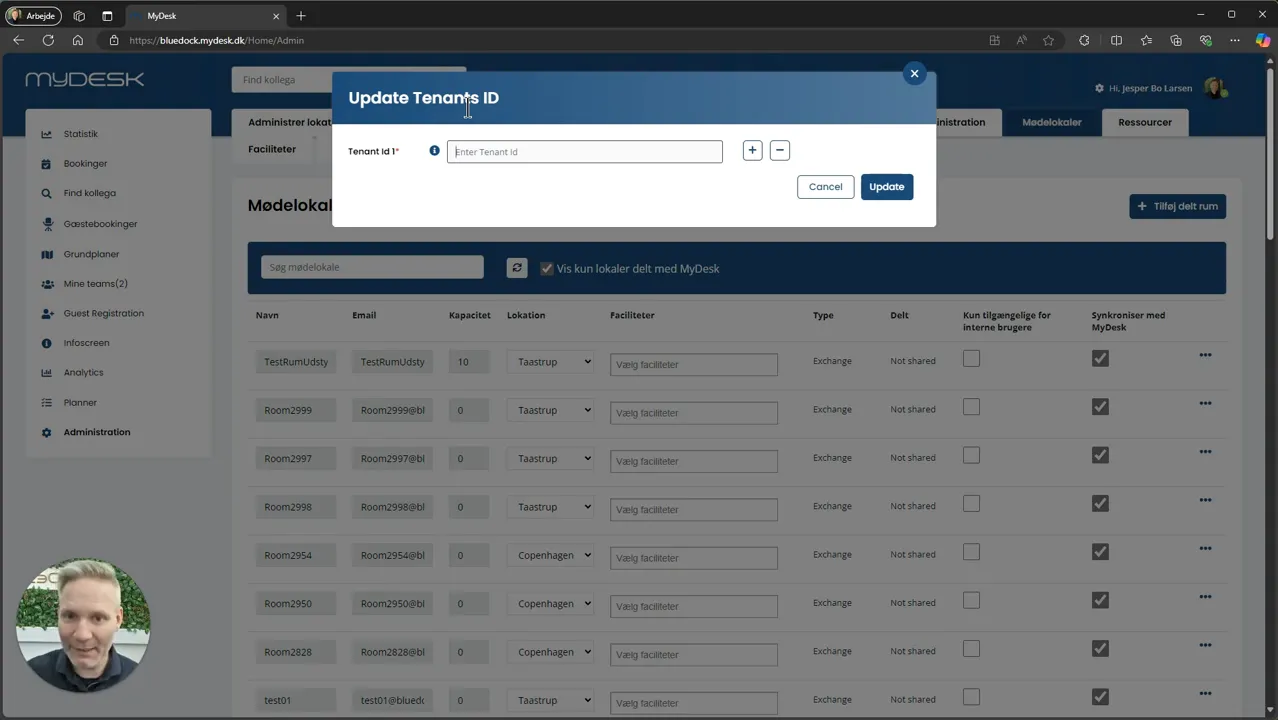
Enter the verified tenant ID of the other organization. Get it from their IT administrator or MyDesk support.
Select the premises to be shared and save the binding.
Check availability and access from the other company. Clarify display of meeting information so internal titles are not shared inadvertently.
Links and materials
See screenshots from the original guide (3)
The screenshots are from the previous guide and may show an older user interface.