This is how you do it
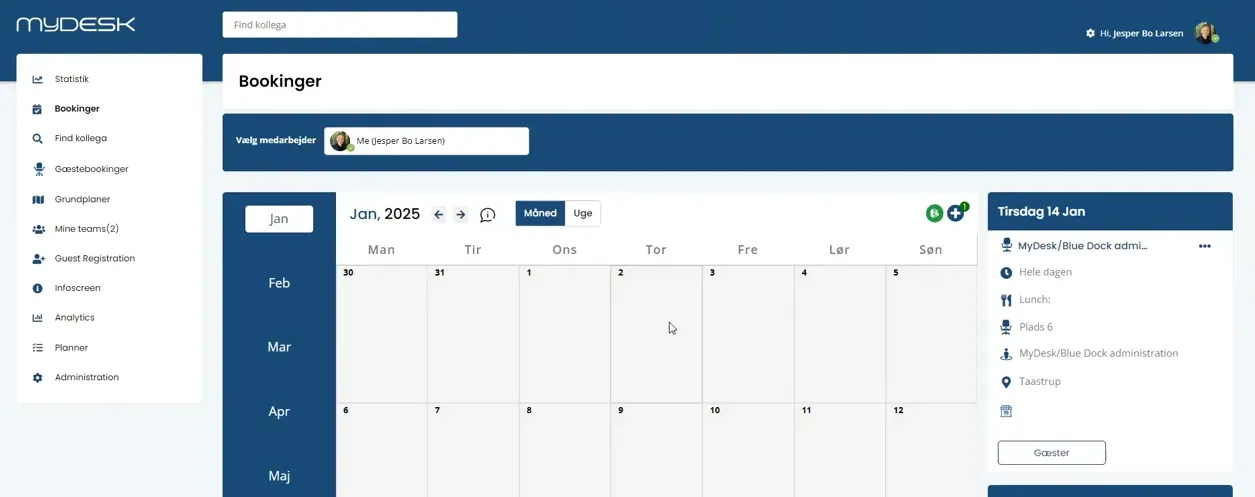
Open the company's MyDesk address or the app provided by the IT department.
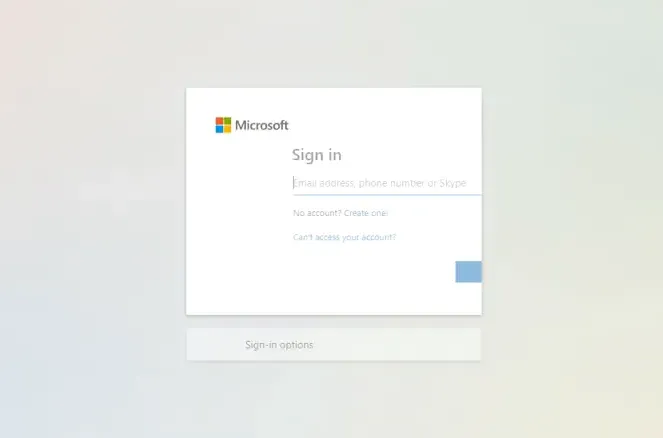
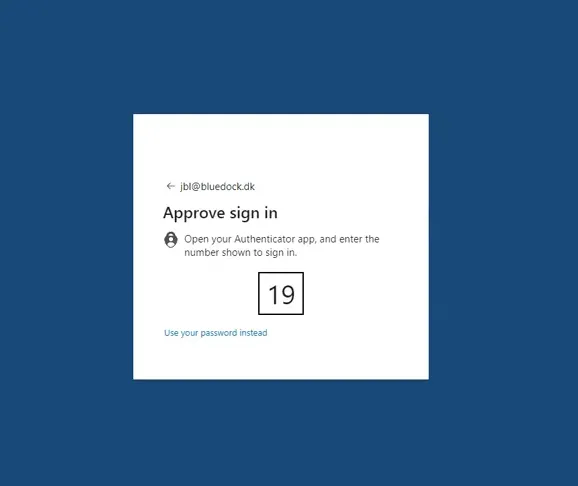
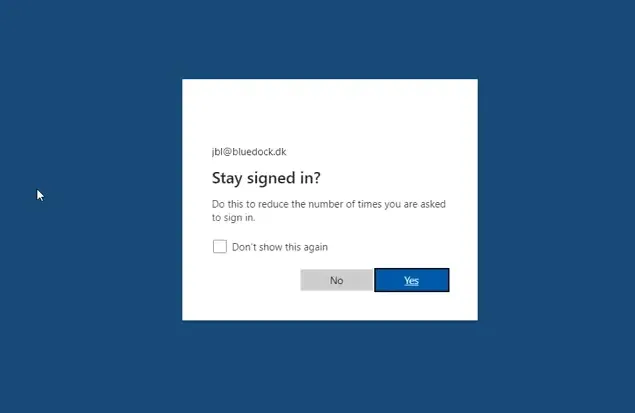
Sign in through Microsoft with your work account and complete any multi-factor authentication.
In Outlook, the add-in usually uses the account you're already signed in with. On mobile, you may be asked to select an account when opening for the first time.
Select the resource, date and time and confirm the booking.
If a function or location is missing, contact your administrator to clarify access and activated modules.
See screenshots from the original guide (4)
The screenshots are from the previous guide and may show an older user interface.