This is how you do it
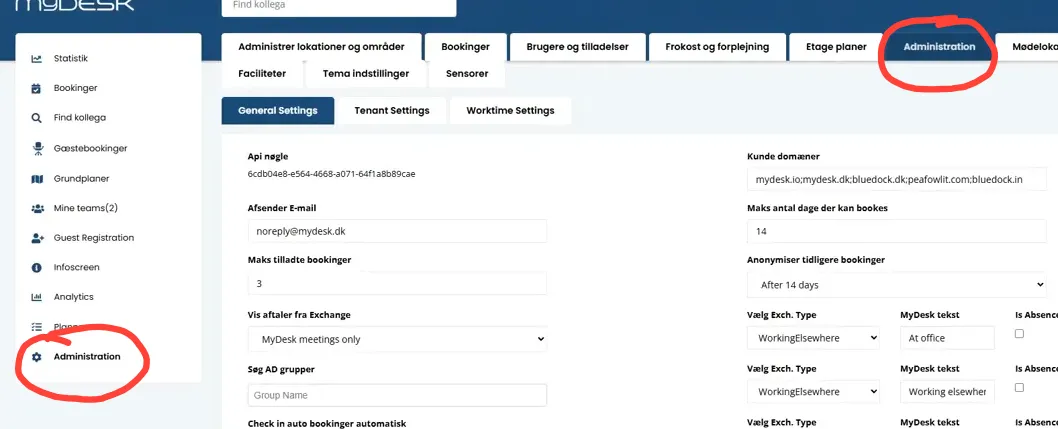
Open Administration and General settings with administrator rights.
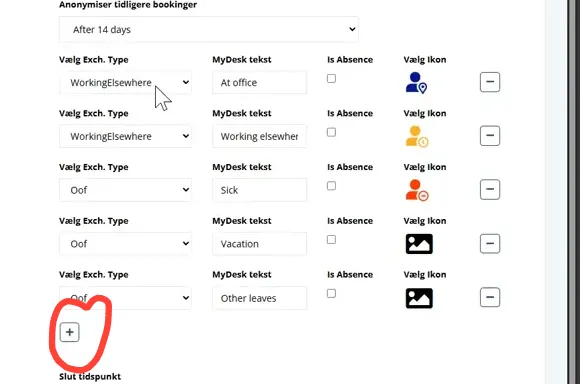
Create a type with the plus icon or edit an existing type.
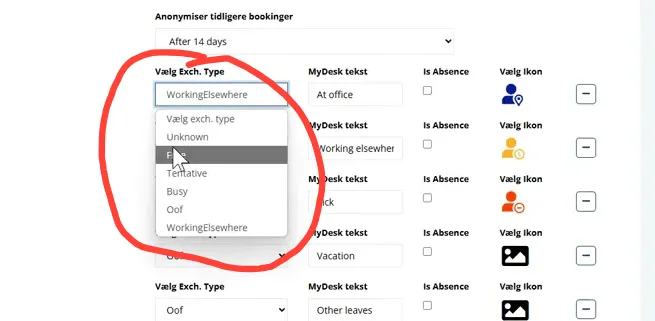
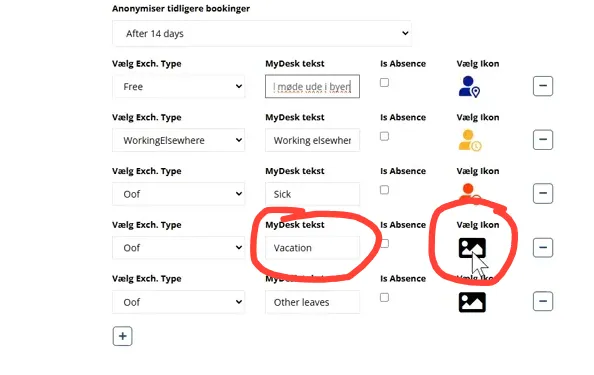
Enter title and possibly icon. Select the Exchange status to display in Outlook.
Free shows the employee as free; Busy shows busy in the calendar's availability. It is not in itself an access rule that prevents invitations.
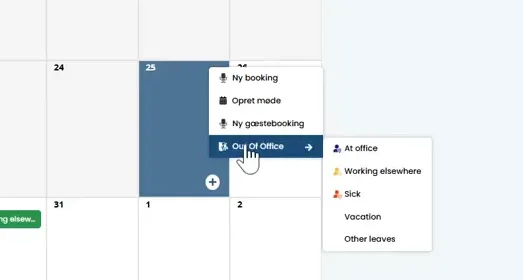
Press Save and check the status selection in MyDesk and the calendar.
See screenshots from the original guide (5)
The screenshots are from the previous guide and may show an older user interface.