MyDesk · Guide

Book and manage electric car spaces

Electric car spaces can be included in the parking module when they have been created in your solution.

Originally published

Parking

This is how you do it

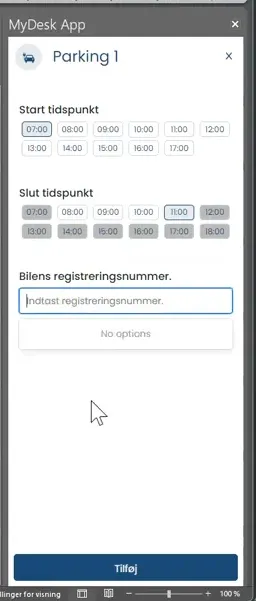
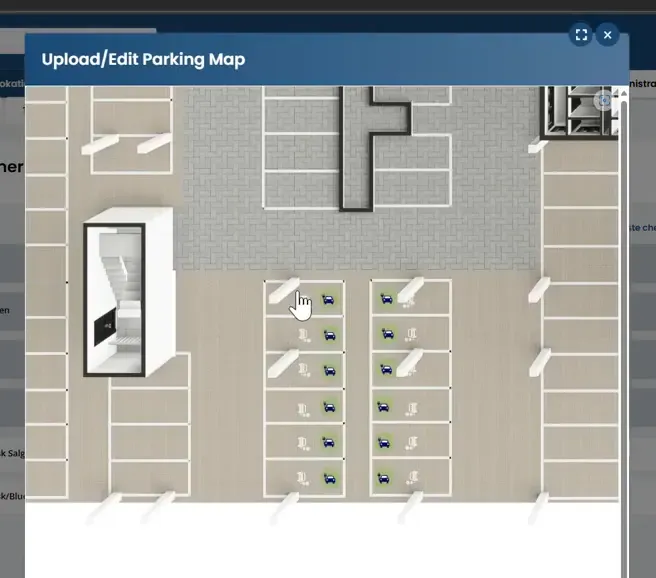
  1. Select Parking, date and time, and find a space marked with a charging icon.

  2. Enter the car's registration number and confirm the booking.

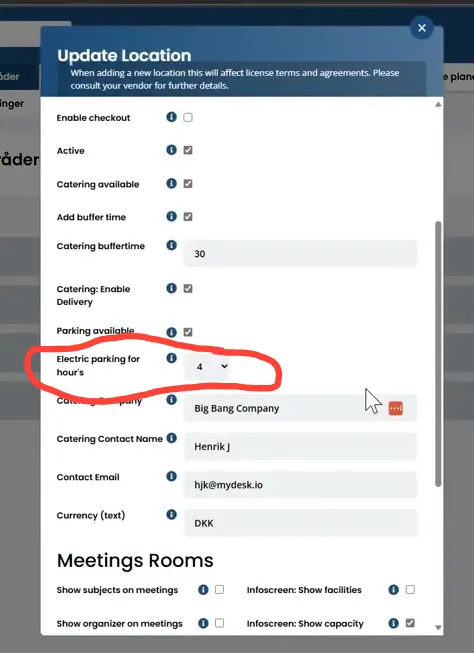
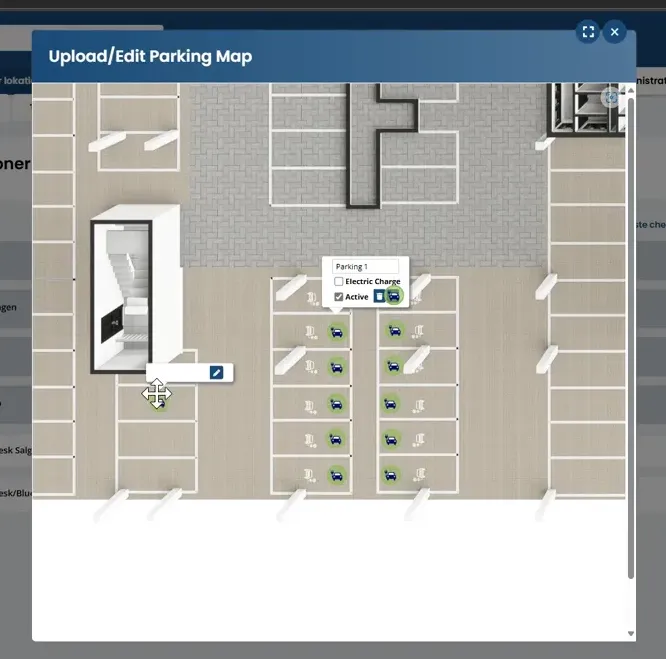
  3. As an administrator, you can mark electric car spaces on the parking map and set a maximum booking time for the area.

  4. Check that the selected seats and time limits are displayed correctly. The actual charging, payment and access depends on your charging and parking setup.

See screenshots from the original guide (5)

The screenshots are from the previous guide and may show an older user interface.
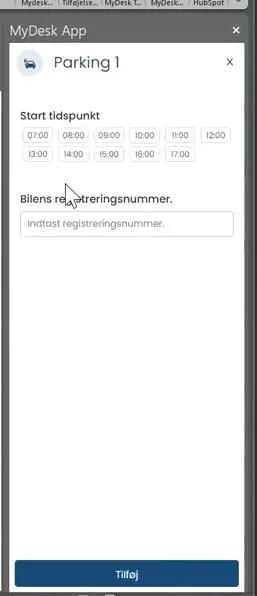
Display of the parking module in MyDesk
Choosing an electric car space and entering the registration number
Booking period settings in the administration area
Indication of electric car spaces on the parking card
Display of electric car space with socket icon

Page coming soon

Explore the platform on our homepage

Book a demo

Open the booking calendar in a new window